> For the complete documentation index, see [llms.txt](https://docs.statuspal.io/llms.txt). Markdown versions of documentation pages are available by appending `.md` to page URLs; this page is available as [Markdown](https://docs.statuspal.io/next/workspace/single-sign-on-and-scim.md).
# Single sign-on & SCIM
Let your team sign in through your identity provider with SAML 2.0, and keep members, roles, and groups in sync with SCIM. Step-by-step setup for Auth0 and Microsoft Entra ID.
Single sign-on (SSO) lets members sign in to StatusPal Next through your company's identity provider over SAML 2.0 instead of a separate password, and SCIM lets that same identity provider create, update, and remove members for you.
{% hint style="info" %}
**SSO vs. SCIM.** SSO controls how members *sign in*. SCIM controls who *exists* in your organization and which role or group they hold, whether or not they ever sign in. You set up SSO first; SCIM rides on top of it and matches members by email to the identity SSO establishes.
{% endhint %}
Both apply to your **organization members**: the admin dashboard and any status page restricted to authenticated users. They are separate from the Google and GitHub options on the same Security page, described in [Sign-in methods and account linking](/next/workspace/sign-in-methods-and-account-linking.md), and from how your status page subscribers receive notifications.
## Configure a SAML provider
Before you begin:
* You need an organization **admin** account. The Security settings are admin-only.
* SSO and SCIM require a **paid plan**. On the Free plan the toggle is locked with a **Paid plan only** badge.
* Your identity provider must support **SAML 2.0**, and **outbound SCIM 2.0** if you also want provisioning.
* You can configure **one SSO provider per organization**.
### Turn on SSO and add your provider
1. In the admin dashboard, go to **Settings** → **Security**.
2. Under **Authentication methods**, turn on **SSO & SCIM**, then click **Save settings**. Until a provider is active, the card shows a **No active provider** badge.
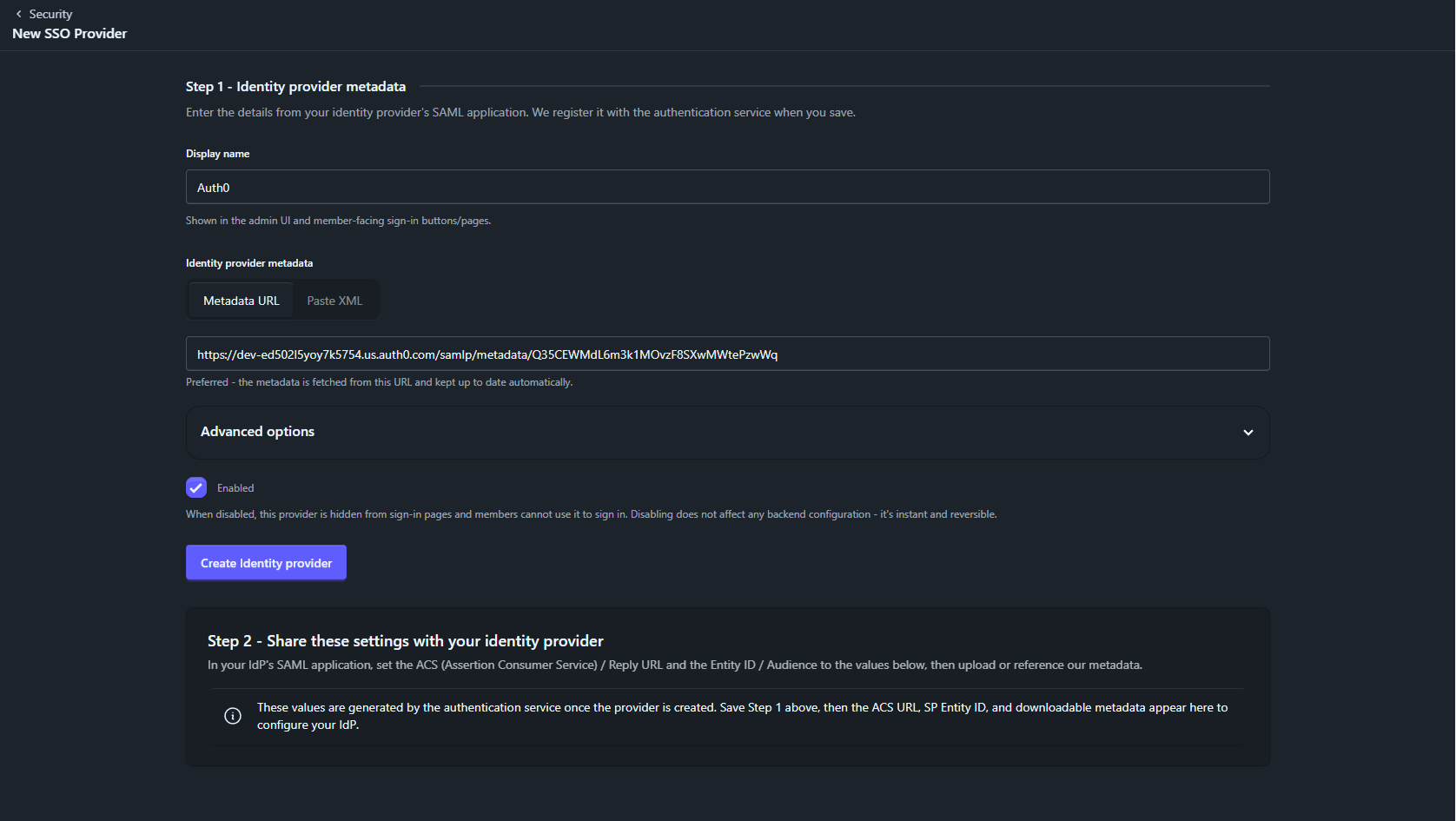
3. The **SSO providers** section appears below. Click **New SSO Provider** to open the setup form.
The form asks for a **Display name**, shown in the admin UI and on member sign-in buttons, and your identity provider's metadata, pasted as a **Metadata URL** or uploaded as a file. **Advanced options** hides settings some providers need, such as **Sign authentication requests**. Leave **Enabled** ticked and click **Create Identity provider**.
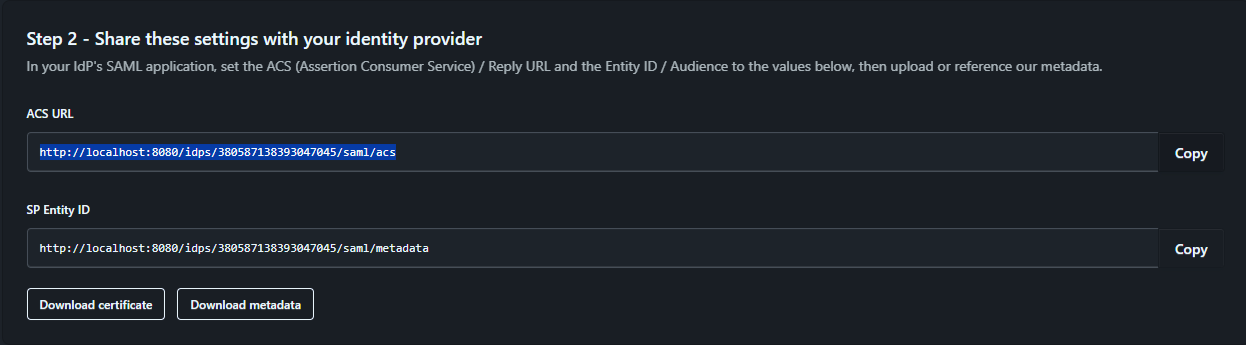
StatusPal Next saves the provider and shows **Step 2 - Share these settings with your identity provider**, with the **ACS URL**, the **SP Entity ID**, and a **Download metadata** button. Your identity provider needs these to trust StatusPal Next. The [Auth0](#auth0) and [Microsoft Entra ID](#microsoft-entra-id) sections below walk through both sides for each provider.
### Share the SSO access URL
1. Back on **Settings** → **Security**, confirm your provider shows an **Active** badge in the **SSO providers** table.
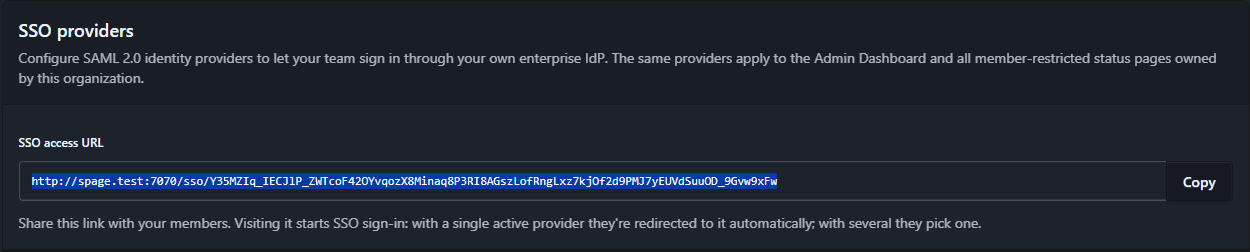
2. Copy the **SSO access URL** shown at the top of the section.
3. Share that link with your team. When a member opens it, they are taken straight to your identity provider to sign in and then returned to StatusPal Next. Members don't reach SSO from the general sign-in screen.
| Badge | Meaning |
| ------------ | ------------------------------------------------------------ |
| **Active** | Registered and ready. Members can sign in. |
| **Pending** | Still being registered with the authentication service. |
| **Disabled** | Turned off and hidden from sign-in pages until re-enabled. |
| **Error** | Registration failed. Check your metadata URL and save again. |
From the same table you can **Enable** or **Disable** a provider without deleting it, **Edit** its display name, metadata, or advanced options, or **Delete** it permanently.
{% hint style="warning" %}
At least one sign-in method must stay available to every member. StatusPal Next won't let you turn off SSO, or any other method, if doing so would leave someone with no way to sign in. Set up an alternative for those members first.
{% endhint %}
### Connect SCIM provisioning
Once a provider is **Active**, scroll to the **SCIM provisioning** section on the same page.
1. Read the **Before you connect** warning: once connected, members of the `statuspal-next-admins` group keep the Admin role, while other current admins are demoted on the next sync except the organization's last admin, whose Admin role is preserved. Create that group first.
2. Click **Connect SCIM**. StatusPal Next generates a **bearer token** and shows it once. Copy it now; if you lose it, click **Rotate token** for a new one.
3. Copy the **SCIM endpoint URL** shown below the token. It ends in `/scim/v2`.
You will paste both into your identity provider in the provider sections below.
**Standard role groups.** Create these three groups in your identity provider, with these exact names, to drive StatusPal Next roles. The section lists them with copy buttons.
| Identity provider group name | StatusPal Next role |
| ------------------------------- | ------------------- |
| `statuspal-next-admins` | Admin |
| `statuspal-next-members` | Member |
| `statuspal-next-status-viewers` | Status viewer |
The mapping is wholesale: everyone in a group gets that role, and anyone who holds the role but isn't in the group loses it on the next sync. Once a role is driven by SCIM you can no longer change it by hand in StatusPal Next. A provisioned member who is in none of these groups gets the default role: **Status viewer** if your organization has the Status Pages module enabled, otherwise **Member**.
**Team groups.** You can also drive a team group's membership from an identity provider group. In **Settings** → **Team Members** → **Groups**, open or create a group and set its **SCIM group name** to the exact name of the matching group in your identity provider, for example `Product-Team`. From then on that group's membership is set by your identity provider and can't be edited by hand. The three role group names above are reserved and can't be used here. See [Invite and manage members](/next/workspace/invite-and-manage-members.md).
**What locks.** Members whose role or group membership comes from SCIM show a **Managed via SCIM** badge in the **Team Members** list, and the matching control is disabled with a tooltip explaining why.
Every SCIM-driven change is recorded in **Settings** → **Audit logs**: a role changed via SCIM, a member added to or removed from a group, and a pushed group that matched no role or group, so a mistyped group name is visible instead of failing silently. See [Audit logs](/next/workspace/audit-logs.md).
Provisioned members appear in **Team Members** as pending until they first sign in through SSO. Deprovisioning a member in your identity provider removes them from your organization. From the **SCIM provisioning** section you can **Rotate token**, which invalidates the previous token immediately, or **Disconnect**. Disconnecting removes nobody; it hands control of the affected roles and groups back to you, starting from whoever currently holds them.
{% hint style="warning" %}
**Not every identity provider pushes groups.** Role and team group sync rely on SCIM **group** updates. Microsoft Entra ID sends them. Auth0's outbound SCIM sends users only: it can provision and deprovision members, who receive the default role, but it can't drive roles or groups.
{% endhint %}
## Auth0
### Single sign-on
1. In a separate tab, open the [Auth0 Dashboard](https://manage.auth0.com) and sign in.
2. Go to **Applications** → **Applications** and click **Create Application**.
3. Enter a name such as `StatusPal Next`, select **Regular Web Application**, and click **Create**.
4. Open the **Addons** tab and enable **SAML2 Web App**. The SAML2 configuration dialog opens.
5. In that dialog, open the **Usage** tab. Next to **Identity Provider Metadata**, copy the URL behind the **Download** link (right-click, then *Copy link address*). Leave the dialog open.
6. Back in the StatusPal Next **New SSO Provider** form, enter `Auth0` as the **Display name**, paste the copied link under **Metadata URL**, and click **Create Identity provider**.
7. On the **Step 2** card, copy the **ACS URL**.
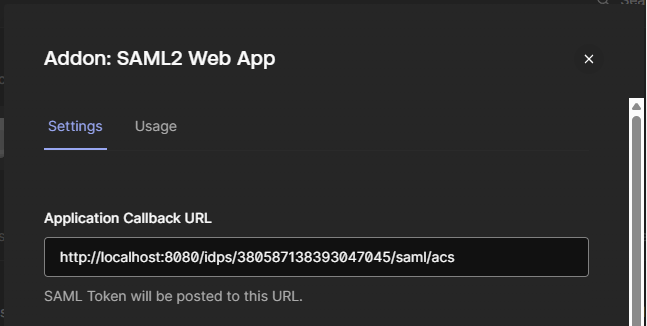
8. In the Auth0 SAML2 dialog, open the **Settings** tab, paste the ACS URL into **Application Callback URL**, scroll to the bottom, and click **Enable**.
Auth0 is now connected. Continue with [Share the SSO access URL](#share-the-sso-access-url).
### SCIM provisioning
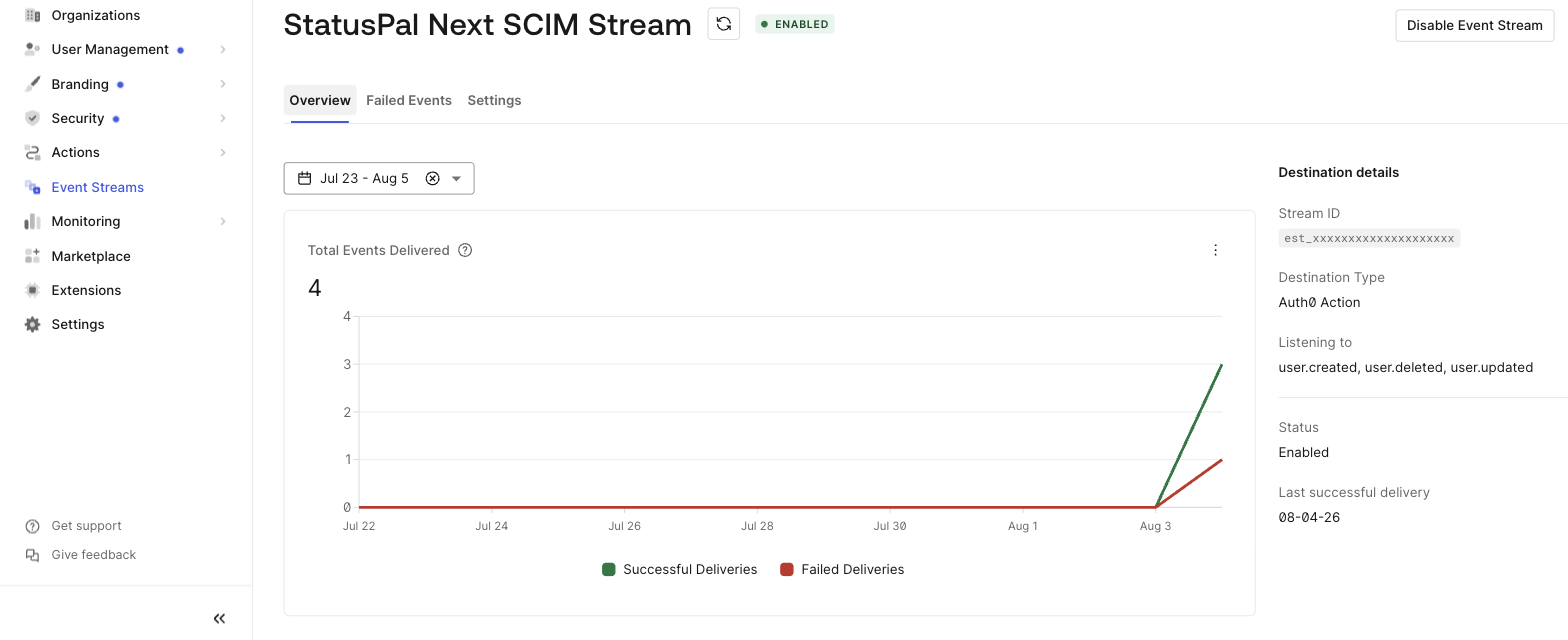
Auth0 provisions and deprovisions users through **Event Streams** and an **Auth0 Action** running Auth0's outbound SCIM template. It reacts to users being created, updated, or deleted in your Auth0 directory and sends the matching SCIM request to StatusPal Next.
1. In the Auth0 Dashboard, go to **Event Streams**, create a stream, and choose **Auth0 Actions** as the destination. Name it, for example `StatusPal Next SCIM`.
2. Under **Select Events**, tick `user.created`, `user.updated`, and `user.deleted`. Leave the group events unchecked.
3. Auth0 creates a linked Action. In the Action editor, open the **Secrets** panel and add `SCIM_BASE_URL`, set to your **SCIM endpoint URL**, and `SCIM_BEARER_TOKEN`, set to your **bearer token**.
4. Copy Auth0's [outbound SCIM Action template](https://github.com/auth0/opensource-marketplace/blob/main/templates/outbound-scim-EVENT_STREAM/code.js) into the Action editor, then save and deploy. For background, see Auth0's guide [Synchronize user changes with Outbound SCIM using Event Streams](https://auth0.com/docs/customize/events/send-outbound-scim).
5. Event Streams only react to new events, so run a one-time bulk sync of your existing Auth0 users into StatusPal Next before enabling the stream.
6. Enable the stream.
New Auth0 users now appear under **Team Members** as pending members with the default role, and deleting a user in Auth0 removes them. Because Auth0 sends only user events, roles and team groups stay managed by hand in StatusPal Next.
## Microsoft Entra ID
### Single sign-on
1. In a separate tab, open the [Azure Portal](https://portal.azure.com), sign in, and open **Microsoft Entra ID**.
2. Click **Add** → **Enterprise application**, then **Create your own application**.
3. Enter a name such as `StatusPal Next`, keep **Integrate any other application you don't find in the gallery (Non-gallery)** selected, and click **Create**.
4. Assign yourself so you can test sign-in: **Assign users and groups** → **Add user/group**, pick your account, then **Assign**. You can add the rest of your team later.
5. In the left menu, click **Single sign-on** and choose **SAML**.
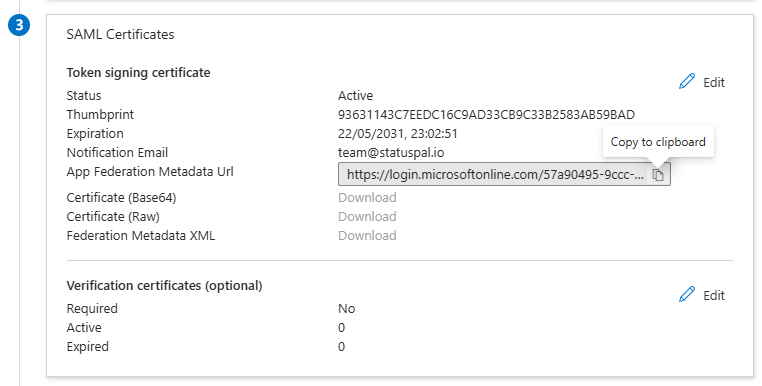
6. In **SAML Certificates**, copy the **App Federation Metadata Url**.
7. Back in the StatusPal Next **New SSO Provider** form, enter `Microsoft Entra ID` as the **Display name** and paste the URL under **Metadata URL**. Expand **Advanced options** and turn on **Sign authentication requests**: Entra ID verifies signed requests with the certificate in the metadata you upload in the next step. Click **Create Identity provider**.
8. On the **Step 2** card, click **Download metadata** to save StatusPal Next's service-provider metadata file.
9. On the Entra ID **SAML-based Sign-on** page, click **Upload metadata file**, select the file you just downloaded, click **Add**, then **Save**. This fills in the **Identifier (Entity ID)** and **Reply URL (ACS URL)** for you.
Entra ID is now connected. Continue with [Share the SSO access URL](#share-the-sso-access-url).
### SCIM provisioning
Entra ID provisions users and groups, so it drives the whole feature: provisioning, role sync, team group sync, and deprovisioning.
1. In **Microsoft Entra ID** → **Enterprise applications**, open the application you created for SSO.
2. Select **Provisioning** and set **Provisioning Mode** to **Automatic**.
3. Under **Admin Credentials**, paste your **SCIM endpoint URL** into **Tenant URL** and your **bearer token** into **Secret Token**.
4. Click **Test Connection**. A success confirms the URL and token are right. Save.
5. Create the groups that drive roles and team groups, and assign them and your users to the application under **Users and groups**. Entra ID only provisions what is assigned:
* For roles, groups named exactly `statuspal-next-admins`, `statuspal-next-members`, and `statuspal-next-status-viewers`.
* For a team group, a group whose name matches the **SCIM group name** you set in StatusPal Next.
6. Select **Start provisioning**.
{% hint style="info" %}
Entra ID syncs on a schedule: the first cycle runs shortly after you start, and later cycles run about every 40 minutes. To test a single user right away, use **Provision on-demand**, and watch **Provisioning logs** to confirm each user and group was sent.
{% endhint %}