> For the complete documentation index, see [llms.txt](https://docs.statuspal.io/llms.txt). Markdown versions of documentation pages are available by appending `.md` to page URLs; this page is available as [Markdown](https://docs.statuspal.io/next/workspace/sign-in-methods-and-account-linking.md).
# Sign-in methods
Control which sign-in methods your organization allows, and link the Google or GitHub account you use to sign in with one click.
Admins choose how the team signs in to StatusPal Next, and each member links their own accounts and password from their profile.
## Choose how your team signs in
Admins manage this under **Settings** → **Security**, in the **Authentication methods** card.
Four switches control how members can sign in:
* **Email & password**: members sign in with their email address and a password.
* **Google** and **GitHub**: members who linked that account (see below) can sign in with it.
* **SSO & SCIM**: members sign in through your organization's identity provider instead. Turning this on doesn't sign anyone in by itself: you still need to add and activate a SAML provider, described in [Single sign-on & SCIM](/next/workspace/single-sign-on-and-scim.md). Until then the card shows a **No active provider** badge, and while off, SSO sign-in is rejected even if a provider is configured. SSO is a paid-plan feature; on the Free plan the toggle is locked with a **Paid plan only** badge.
At least one method must stay enabled, and StatusPal Next won't let you save a change that would lock a member out. If you try to turn off a method that some members rely on exclusively, saving is blocked and the page lists exactly who would be affected and which other method they'd need first, for example a member who only ever signed in with Google and never set a password.
## Link Google or GitHub to your account
Each member manages their own linked accounts from **Profile**, under **Connected accounts**.
For each provider, click **Link** to connect it. You're sent to that provider to sign in, and the email you authenticate with must match your StatusPal Next account email. Once linked, the row shows the linked email and you can sign in with that provider with one click from the sign-in screen. Click **Unlink** to remove it.
If a provider is disabled in your organization's security settings, its row shows **Disabled by your organization** instead of a **Link** button. And you can't unlink your only remaining sign-in method: **Unlink** is disabled with a tooltip until you have another way in, such as a password or a second linked provider.
{% hint style="info" %}
If you sign in through your organization's SSO provider, that shows up here too, as a **Single sign-on (SSO)** row marked **Managed by your organization**. It can't be unlinked from your profile; it follows however your admin configures SSO. See [Single sign-on & SCIM](/next/workspace/single-sign-on-and-scim.md).
{% endhint %}
## Set or change your password
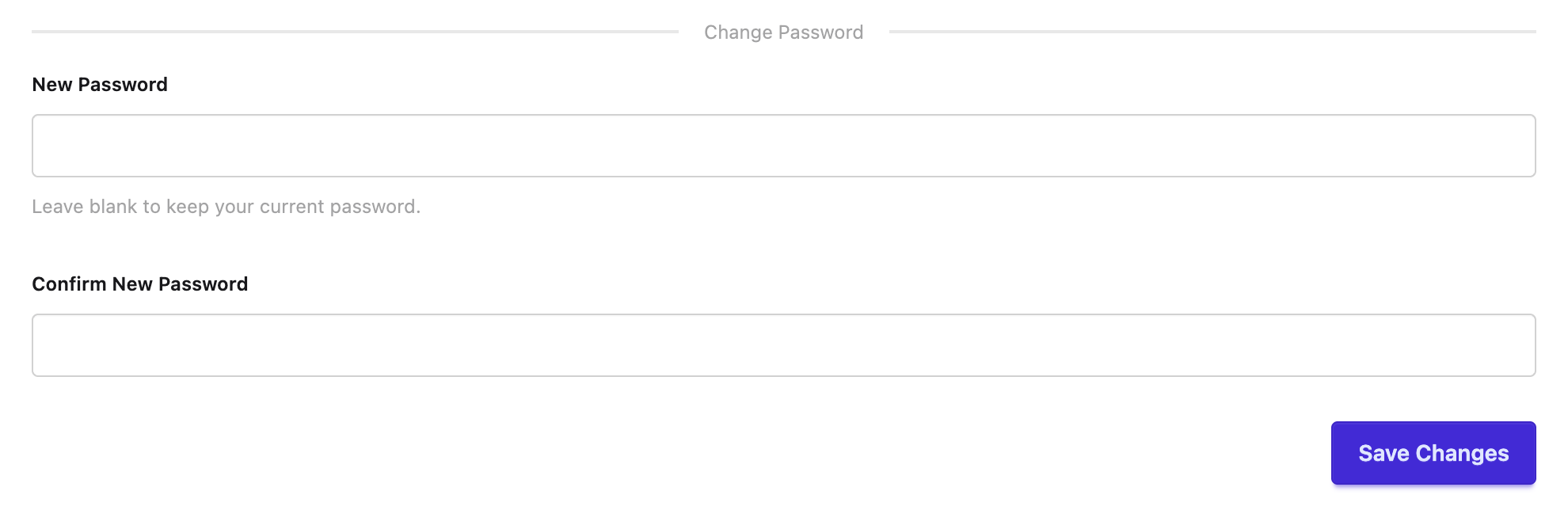
Your password lives on the **Profile** page too, in the **Personal Information** card, whenever your organization allows **Email & password** sign-in.
If you signed up through Google, GitHub, or SSO and have never set one, the section reads **Set a Password** and explains which provider you currently sign in with. Choose a password there to also enable email and password sign-in, in addition to your linked provider. If you already have a password, enter a new one to change it, or leave the field blank to keep your current one.
A new password needs at least 15 characters and no more than 64. It doesn't need uppercase letters, numbers, or symbols, so a long passphrase or a password generated by your password manager works well. Accented letters, emoji, and non-Latin characters take up extra space, so a long password made mostly of them may need to be shorter. The same rules apply when you sign up. A password you set before these rules keeps working until you change it.
If your organization turns off **Email & password** sign-in, this section disappears and the card notes that email and password sign-in is disabled by your organization. Any password you had stops working for sign-in until the method is turned back on.
## What members see on the sign-in screen
The sign-in screen asks for an email address first, before anything else. Below it, **Continue with Google** and **Continue with GitHub** buttons appear regardless of your organization's settings, because the screen does not yet know which organization you belong to.
Entering an email and clicking **Login** routes you based on what your organization allows:
* If your organization doesn't allow email and password sign-in, or your account has no password set, you're sent back with a message naming another method to try, such as a linked provider.
* Otherwise you're taken to sign in with your password.
The same check applies to the Google and GitHub buttons: if you authenticate with a provider your organization has since disabled, you're sent back with a message pointing to another method. SSO sign-in works differently: members reach it through an organization-specific link rather than the general sign-in screen. See [Single sign-on & SCIM](/next/workspace/single-sign-on-and-scim.md).