> For the complete documentation index, see [llms.txt](https://docs.statuspal.io/llms.txt). Markdown versions of documentation pages are available by appending `.md` to page URLs; this page is available as [Markdown](https://docs.statuspal.io/next/status-pages/subscribers-and-notifications.md).
# Subscribers & notifications
Let visitors follow your status page by email, Slack, Microsoft Teams, Google Chat, RSS, SMS, or calendar app, and manage, import, or filter who gets notified when a notice changes.
Subscribers are the people who want to hear about your incidents and maintenance without checking the page themselves, and this article covers how to turn channels on, how visitors sign up, and how you manage the list from the admin console.
## Configure notification channels
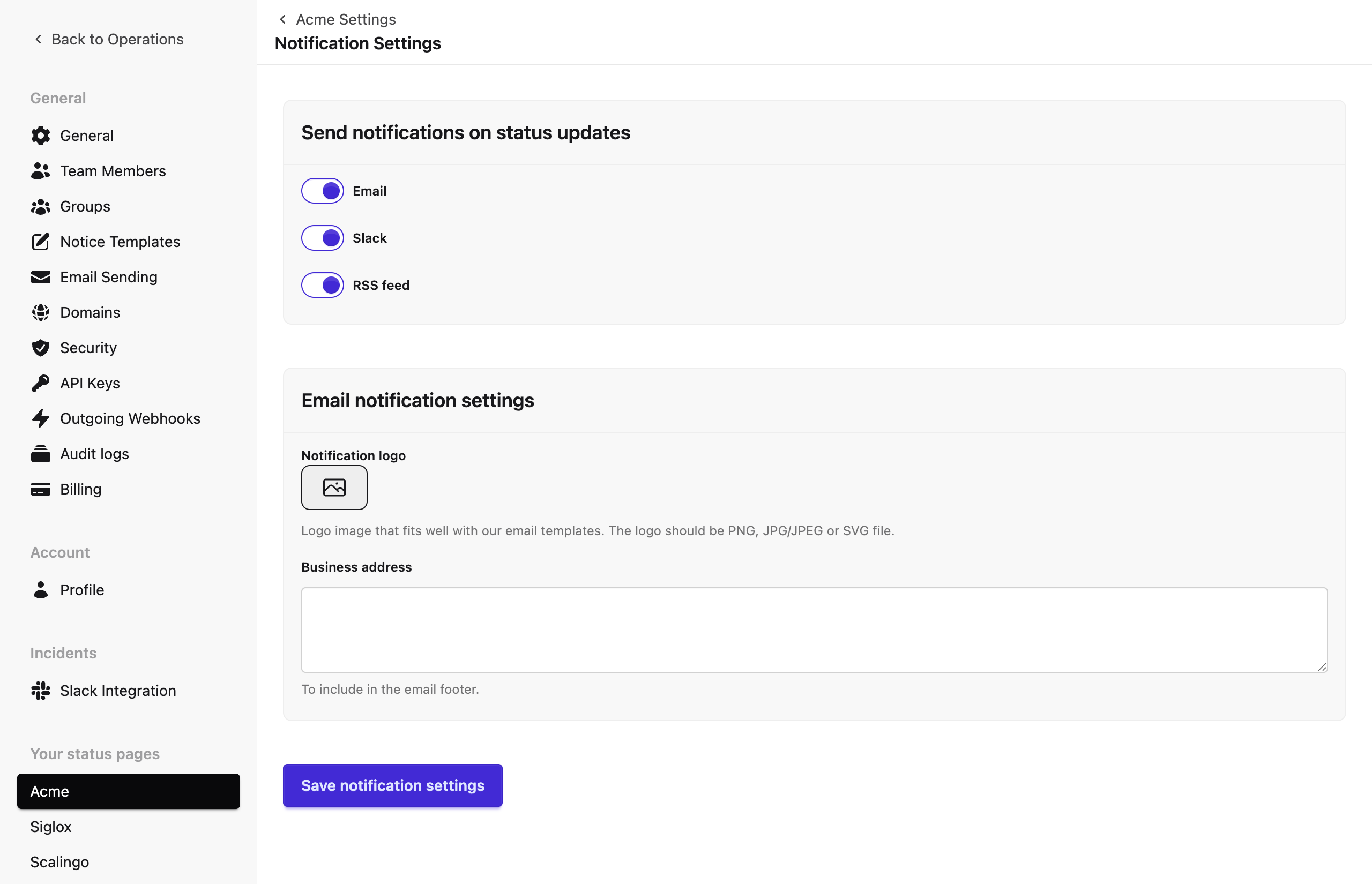
Go to **Settings → Notifications** to control which channels can send updates at all. Seven switches sit under **Send notifications on status updates**:
* **Email**
* **Slack**
* **RSS feed**
* **Calendar feed**
* **Microsoft Teams**
* **Google Chat**
* **SMS**
Turning a switch off stops that channel from sending or being reachable at all, even for subscribers or calendar apps already pointed at it.
{% hint style="info" %}
**This Slack switch is for subscribers, not for your team.** It controls messages posted to a Slack channel that subscribed to this status page. It's separate from the Incident Management Slack integration your team uses to respond to incidents, covered in [Respond from Slack](/next/incident-management/respond-from-slack.md).
{% endhint %}
The same page has an **Email notification settings** card:
* **Notification logo**: shown at the top of every notification email.
* **Business address**: included in the footer of every notification email.
Turning on **SMS** reveals an **SMS (Twilio)** card, since SMS is sent through your own Twilio account rather than one StatusPal Next manages for you:
* **Account SID**, **Auth Token**, and **From Number**: your Twilio credentials. SMS can't be enabled until all three are filled in — StatusPal Next won't let you turn the switch on with an incomplete or missing Twilio setup.
* **Restrict SMS to**: a multi-select of Critical incident, Major incident, Minor incident, and Maintenance. Leave it at its default of Critical and Major, pick your own mix, or clear it entirely to stop all SMS for incidents and maintenance. Info notices never send SMS, no matter what's selected here, since a text message can't carry as much context as the other channels and info notices are rarely urgent enough to justify the cost.
The **Planned maintenance** card controls how planned maintenance runs, and sets the notification defaults every new planned maintenance starts with:
* **Automatically start and complete planned maintenance on schedule**: on by default. Turn it off to start and complete each planned maintenance yourself, by posting updates with the next status. It applies to every planned maintenance on the page, including ones already scheduled. No reminders or automatic start and completion updates go out, so the settings below are greyed out and aren't shown on each maintenance.
* **Notify before maintenance starts**: reminders sent ahead of the start time. Type a lead time such as "2 days before", "90 minutes" or "3h", or pick a suggestion. Leave it empty, the default, to send no reminders.
* **Notify when maintenance starts** and **Notify when maintenance completes**: whether the automatic "Maintenance started" and "Maintenance completed" updates notify subscribers. Both are on by default.
Each maintenance keeps its own copy of the notification settings, which you can adjust when you schedule it or later from its details page (see [Schedule maintenance](/next/status-pages/incident-maintenance-and-info-notices.md#schedule-maintenance)), so changing the defaults doesn't affect maintenance that's already scheduled. A reminder re-sends the maintenance announcement to the same subscribers, marked as a reminder; its email subject starts with "Reminder:".
{% hint style="info" %}
**A channel needs two switches on to reach visitors.** The Notifications page controls whether a channel sends anything. The **Subscribe modal** card under **Settings → Customization** controls which tabs the subscribe dialog offers. A channel has to be on in both places before visitors can pick it, as explained in [Customize your page](/next/status-pages/customize-your-page.md).
{% endhint %}
{% hint style="info" %}
**Automated notices never notify subscribers.** Notices opened by [monitoring checks](/next/monitoring/connect-checks-to-status-pages.md) or [incoming webhook automations](/next/status-pages/automate-status-updates.md) appear on the page, but no email or Slack message is sent and the RSS feed skips them, unless someone posts an update with **Notify subscribers** ticked. The calendar feed is the exception: it still shows the notice as an event (within its scheduling window), just without any update text in the description until one is posted with **Notify subscribers** ticked.
{% endhint %}
## How subscribing works for your status page end users
Visitors subscribe from the status page itself, on whichever channels you've enabled in both places above.
### Subscribe by email
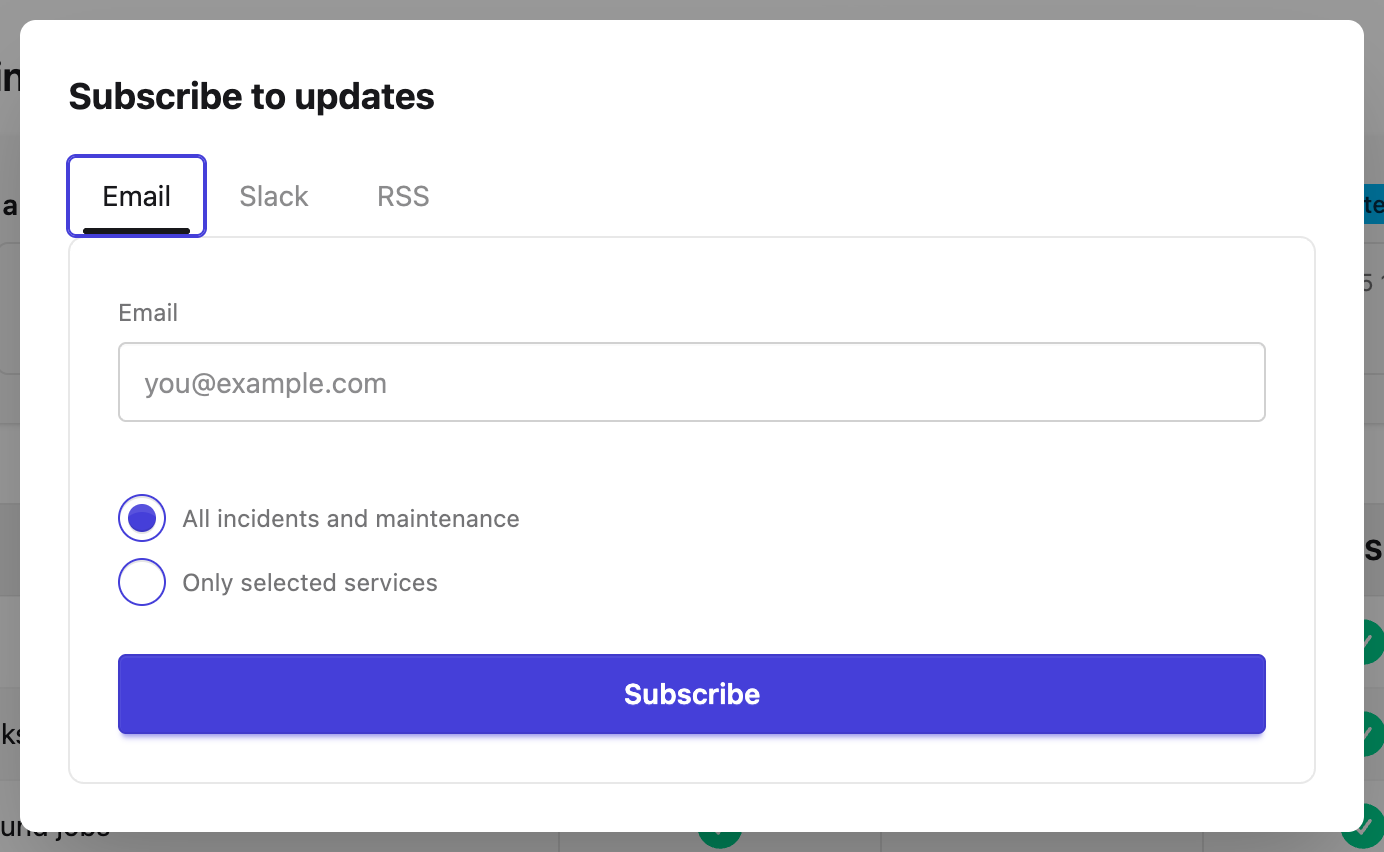
A visitor clicks **Subscribe** on the status page, enters an email address on the **Email** tab, and chooses **All incidents and maintenance** or **Only selected services**. Submitting sends a confirmation email with a **Confirm subscription** link; nothing is delivered until that link is clicked, unless an admin added the subscriber directly without requiring confirmation (see [Configure a custom sending email domain](#configure-a-custom-sending-email-domain) below). The status page then shows an **Almost there!** message that names the address the email comes from (your custom sending domain if you have one, otherwise the shared StatusPal Next address), asks the visitor to add it to their contacts or safe senders, and reminds them to check their spam or junk folder.
Once confirmed, the subscriber gets an email for every update posted with **Notify subscribers** ticked, the first one included, for incidents, maintenance, and info notices alike. Updates posted without it are not emailed. The exception is maintenance: its automatic start and completion updates, and the reminders before a planned window, can be emailed too, as explained in [Schedule maintenance](/next/status-pages/incident-maintenance-and-info-notices.md#schedule-maintenance). The subject is the notice's title; the body repeats it with the current status, the update text, and the affected or related services. The footer adds the business address (if set) and an **Unsubscribe** link, which opens a page with an **Unsubscribe** button; there's no separate page for changing which services a subscriber is filtered to, that's done by an admin.
### Subscribe a Slack channel
On the **Slack** tab, the visitor clicks **Add to Slack**, picks the workspace and channel in Slack's own authorization screen, and is redirected back once done. There's no email confirmation step: the channel gets a welcome message right away confirming the services it will hear about.
From then on, every incident, maintenance, or info notice update posted with **Notify subscribers** ticked arrives in that channel as a formatted card: a header with the notice's title, its current status (and any status change, for updates), the affected or related services, and a button to view the full notice on the status page.
To disconnect, delete the subscription (from the status page's unsubscribe page, or from the admin Subscriptions page covered below). The channel gets a farewell message confirming it will no longer receive updates; the StatusPal Next Slack app itself stays installed until removed from the workspace's own app settings. To move the subscription to a different channel instead, use **Change channel**, which re-runs the Slack authorization; the old channel is told notifications moved and the new one gets the welcome message.
### Subscribe via Microsoft Teams or Google Chat
On the **Microsoft Teams** or **Google Chat** tab, the visitor pastes in an incoming webhook URL for the channel or space they want updates posted to and chooses **All incidents and maintenance** or **Only selected services**. Unlike Slack, there's no authorization step and no confirmation message: the subscription is created the moment the webhook URL is saved, so double-check it's the right one before submitting.
To get that URL:
* **Microsoft Teams**: from the target channel, open **Workflows**, add the **"Post to a channel when a webhook request is received"** workflow, and copy the URL it generates. See [Microsoft's guide to creating an incoming webhook](https://learn.microsoft.com/en-us/microsoftteams/platform/webhooks-and-connectors/how-to/add-incoming-webhook) if the channel doesn't have Workflows set up yet.
* **Google Chat**: from the target space, open **Apps & integrations → Webhooks**, name the webhook, and copy the URL it generates. See [Google's guide to setting up an incoming webhook](https://developers.google.com/chat/how-tos/webhooks#setting_up_an_incoming_webhook) for the full walkthrough, including permission requirements.
From then on, every incident, maintenance, or info notice update posted with **Notify subscribers** ticked arrives as a card with the same information as Slack: the notice's title, its current status, and the affected or related services. If the webhook URL is later deleted or the channel or space is removed, deliveries will simply fail; remove the subscription from the admin Subscriptions page to stop the retries.
### Subscribe by SMS
On the **SMS** tab, the visitor picks a country from the dropdown and enters a phone number, then chooses **All incidents and maintenance** or **Only selected services**. As with Teams and Google Chat, there's no confirmation step.
Because a text message has to stay short, SMS updates skip the affected-services list entirely: a message is just the notice type, its title, a short excerpt of the update, and a link to the full status page, trimmed to fit a single text if needed. Which severities and notice types actually trigger an SMS is controlled by the **Restrict SMS to** setting described above.
### RSS feeds
The **RSS** tab links to a single feed address for the whole status page. Any RSS reader can subscribe to it directly, no confirmation needed. The feed lists notices whose latest update was posted with **Notify subscribers** ticked, so quiet and automated updates don't appear in it. Unlike email and Slack, it isn't split by service, so subscribing to it means seeing every incident, maintenance window, and info notice StatusPal Next posts.
### Subscribe by calendar
The **Calendar** tab offers two feed links: one for all incidents and maintenance, one for maintenance only. Add either to a calendar app (Google Calendar, Outlook, Apple Calendar, and most others support subscribing to a feed URL) to see them as events, with each event's description listing the affected services and any updates posted with **Notify subscribers** ticked. Unlike the other channels, the calendar feed isn't gated on that setting for whether a notice *appears* at all — see the note above.
If the status page requires authentication, its calendar links include a private access key so a calendar app can fetch them without signing in; treat that link like a password and avoid sharing it.
### Filter subscriptions by service and region
Choosing **Only selected services** (email, Teams, Google Chat, SMS) or ticking specific services (Slack) opens a grid: one row per service, one column per container, with any service groups as headings. If your status page scopes services to containers like "EU Region" and "US Region", that grid is how a subscriber follows just the services and regions that matter to them.
For incidents and maintenance, a filtered subscriber is notified only when a service in their selection actually moves away from Operational at some point in that notice. Info notices work differently: since they never change a service's status, delivery instead follows the related services you picked while writing the notice, covered in [Incident, Maintenance & Info Notices](/next/status-pages/incident-maintenance-and-info-notices.md).
## Manage your subscribers
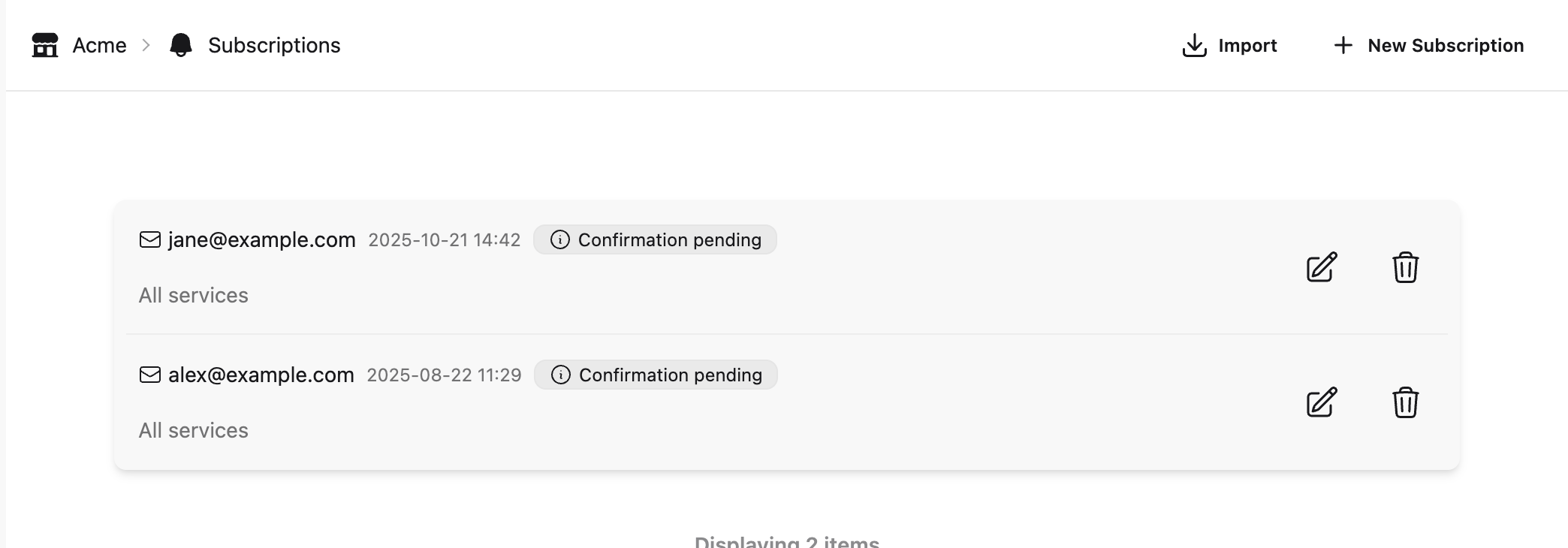
Open a status page and go to **Subscriptions** to see every subscriber, newest first. Each row shows the email address, Slack channel, Teams/Google Chat webhook, or phone number, when they subscribed, whether an email subscription is confirmed, and which services they're filtered to. Subscriptions load a page at a time; use the pager at the bottom to see the rest.
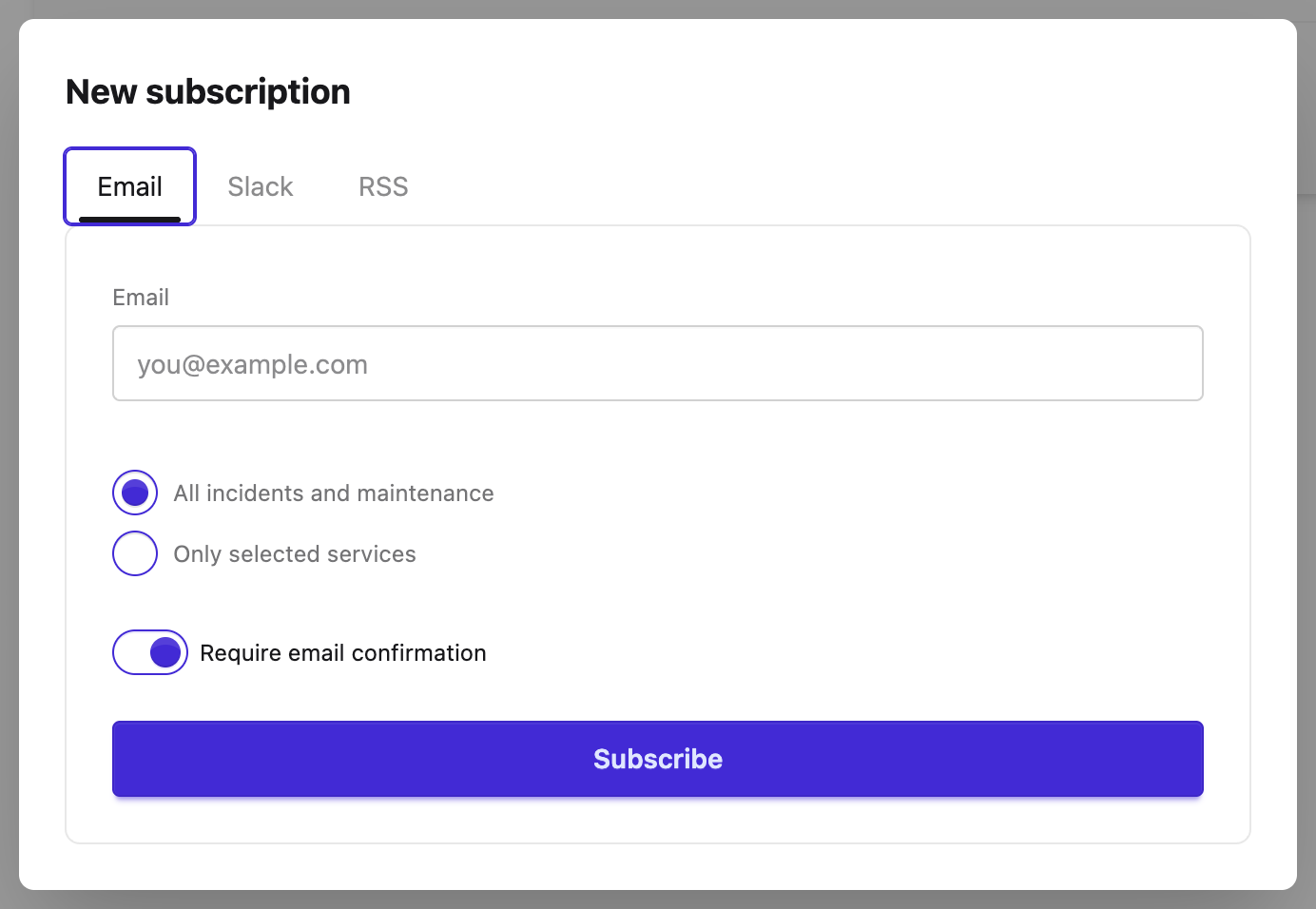
Click **New Subscription** to add a subscriber by hand, on any enabled channel. For email, admins get an extra option the subscribe dialog doesn't show: **Require email confirmation**. Turning it off adds the subscriber immediately, with no confirmation email; it's only available once the status page has a custom sending email domain, for the reason explained under [Configure a custom sending email domain](#configure-a-custom-sending-email-domain) below. When a confirmation email does go out, the page shows an **Almost there!** message naming the subscriber's address and the address the email comes from, so you can tell them what to look for and to check their spam folder.
Click the pencil icon on any row to edit which services a subscriber is filtered to. Click the trash icon to delete a subscription; for a Slack subscription this also posts the farewell message to that channel.
## Import subscribers
Click **Import** on the Subscriptions page to bring in a list of email subscribers from a CSV file.
The file must be semicolon-separated with a header row: `Email;Services`. **Services** is optional; leave it blank to subscribe to all services. Click **Download example CSV file** in the dialog for a starting point with the right headers.
The **Require email confirmation** toggle works the same as it does for a single subscription: it's on by default, and can only be turned off once the status page has a custom sending email domain configured, since imported addresses haven't agreed to hear from you through StatusPal Next itself.
Importing runs in the background; you'll get an email when it finishes, reporting how many of the rows were imported successfully and, if any rows failed, which addresses and why (an invalid email, a badly formatted **Services** column, or the subscriber plan limit). A single import processes up to 20,000 rows.
Free plan status pages are limited to 500 subscribers each; importing past that limit stops there and reports the rest as failed rather than upgrading anything for you.
## Configure a custom sending email domain
By default, subscriber emails come from a shared StatusPal Next address, and every email subscription needs a confirmation click before it starts receiving anything. Authenticating your own sending domain changes both: notifications come from your domain instead of the shared one, and you gain the option to add or import subscribers without a confirmation email, useful for a list of people who already agreed to hear from you elsewhere. See [Email sending domains](/next/status-pages/email-sending-domains.md) for how to set one up.