> For the complete documentation index, see [llms.txt](https://docs.statuspal.io/llms.txt). Markdown versions of documentation pages are available by appending `.md` to page URLs; this page is available as [Markdown](https://docs.statuspal.io/next/status-pages/incident-maintenance-and-info-notices.md).
# Incident, Maintenance & Info Notices
Post incidents, maintenance windows, and announcements on your status page, keep them updated, and control who gets notified.
Notices are how your status page talks to its audience. An incident notice tells them something is broken, a maintenance notice warns them before you take something down, and an info notice shares news that has no impact on service. Every notice is a title, a timeline of updates, and the set of services it affects.
{% hint style="info" %}
**Notices are not Incident Management incidents.** A notice is the message your subscribers and visitors see. An incident under **Incident Management** is your team's internal record, with responders, a commander, and runbooks. The two are separate unless you publish an incident to a status page, which creates an incident notice for you. See [Manage incidents](/next/incident-management/manage-incidents.md).
{% endhint %}
## Overview
Open a status page in the sidebar and choose **Notices**. The **Home** tab shows what is live right now, and **All Notices** lists everything with a search box that accepts filters such as `type:incident`, `lifecycle:active`, or a word from a title or private note. Click **Add notice** to create one of three types:
| Type | Use it for | Statuses |
| --------------- | -------------------------------------------------------- | ----------------------------------------------- |
| **Incident** | Something is degraded or down right now | Investigating, Identified, Monitoring, Resolved |
| **Maintenance** | Work you plan to do, or emergency work you are doing now | Scheduled, In progress, Verifying, Completed |
| **Info** | Announcements with no impact on service status | None |
Incident and maintenance notices change the status of the services they touch and feed the uptime graph. Info notices do neither. Members and admins can create and update notices; only admins can delete one.
## Report an incident
Click **Add notice** and choose **Incident**. The form asks for:
* **Title**: what visitors see in the list and in notifications. The sparkle icon opens the AI assistant, covered under [Private notes and notification controls](#private-notes-and-notification-controls).
* **Severity / business impact**: **Minor**, **Major**, or **Critical**, or **None**. Severity sets the badge and emoji on the notice and decides how the incident counts in the uptime graph. Without one, the worst affected component decides.
* **Status**: the step the incident is at. New incidents start at **Investigating**. Picking a later step is fine when you are already past that point.
* **Affected services**: the grid of your services and containers. Click a component and pick **Degraded**, **Partial outage**, or **Unavailable**. Components left at **No changes** are untouched. The statuses you pick are applied to the status page the moment you publish.
* **Description**: the first update, in rich text. Say what is happening and what you are doing about it.
* **Posted at**: the time shown on this first update. It defaults to now; backdate it when you are writing up something that started a little earlier.
* **Notify subscribers**: whether this first update goes out through the page's notification channels.
Click **Publish**. The notice appears on your status page, the affected components change status, and the banner at the top of the page updates to match. You land on the notice's page, where the rest of the incident happens.
## Post updates and manage service impact
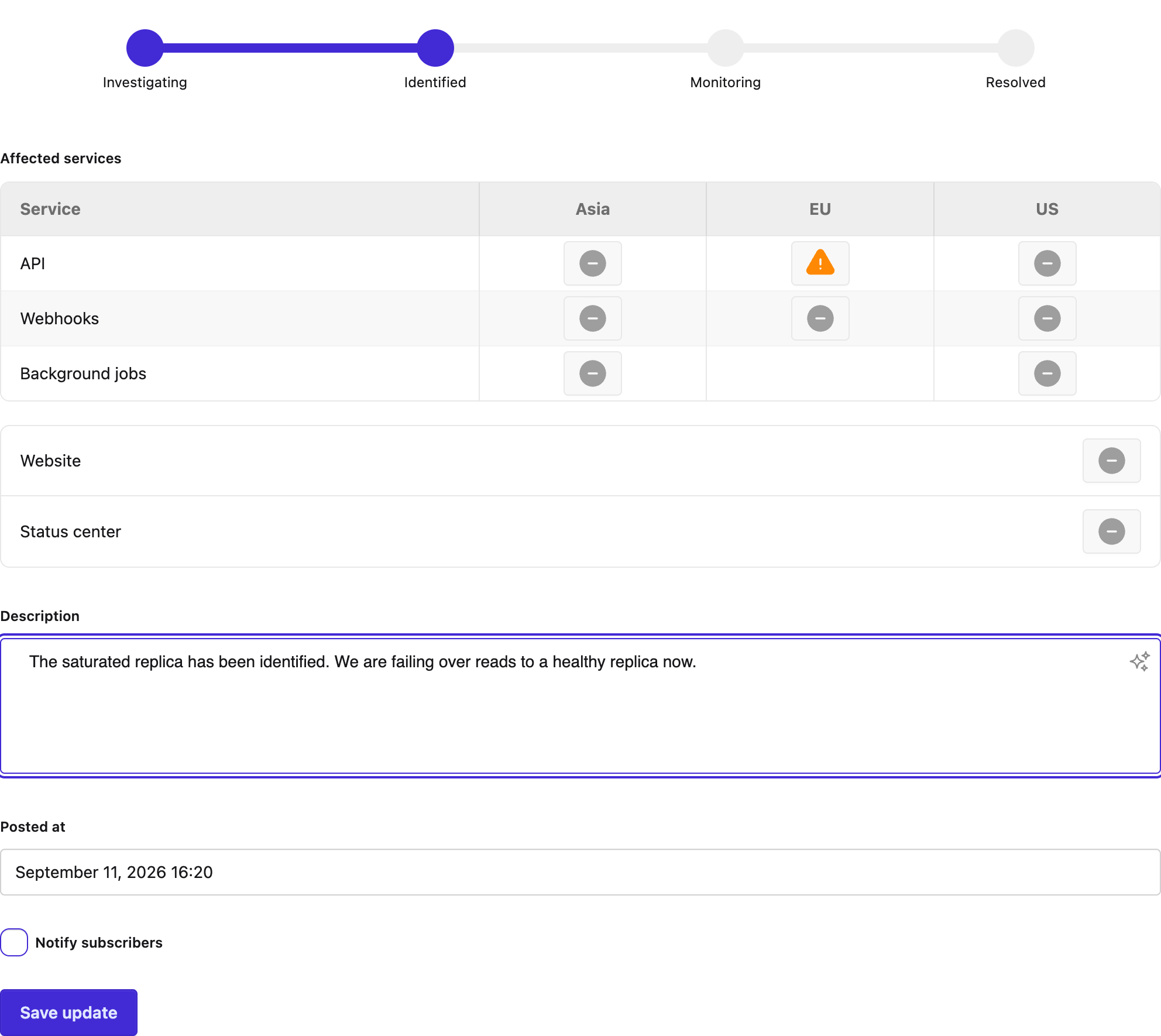
While an incident is ongoing, its page shows the update form inline. Each update can move the status along the steps, change the impact on any component, and carry a message.
* **Status**: click a step. Choosing **Resolved** offers to return every affected component to Operational, with an undo link if you want to resolve the notice but keep a component impaired.
* **Affected services**: the same grid as when you created the notice. Components already affected show their current impact and can be moved up, down, or back to **Operational**. Components you have not touched stay at **No changes**.
* **Description**: the update text.
* **Posted at**: defaults to now. Backdate it when you are writing up something that happened a few minutes ago.
* **Notify subscribers**: per update, so you can post a quiet progress note between two notified ones.
Click **Save update**. Live component statuses follow the last update that mentioned them. The impact badges on the notice, in notification emails, and in the feed use the same rule: for each component, the last non-Operational impact this notice recorded is what gets shown. An incident that went Unavailable, then Partial outage, then Resolved reads "Partial outage" in its history.
Components that belong to a [service group](/next/status-pages/services-and-containers.md#service-groups) are listed under the group's name — **Platform: API, Web Console** — with anything ungrouped after them. Only the components this notice actually touched are listed, so a group of five services with two affected names those two rather than reading as though the whole group went down. Email, Slack, Teams and Google Chat notifications and the calendar feed use the same wording, so a channel and the status page never describe one impact two different ways.
Once the notice is resolved, the inline form is replaced by a **New update** button for post-incident notes. Every update can be edited afterwards from its menu, but only its text and time; the statuses it applied are fixed. A notice must always keep at least one update.
## Record retroactive incidents
Sometimes you learn about an outage after it is over, or you want your history to include incidents from before you had a status page. Tick **Retroactive?** on the incident form and two fields appear: **Starts at** and **Ends at**. Both are required and the end must be in the past.
A retroactive incident is passive. It never changes a live component status, and it appears straight in your history with the impact you record for each component. The uptime graph is recalculated for the days it covers, so a back-dated Major or Critical incident lowers the uptime for those days exactly as if it had been reported at the time. Leave **Notify subscribers** unchecked unless you want to tell people about something that already ended.
## Schedule maintenance
Click **Add notice** and choose **Maintenance**. Keep **Maintenance type** at **Planned**, then set:
* **Starts at**: when the window opens, in the status page's timezone. It has to be in the future.
* **Duration**: how long it lasts, for example `2h 30min`. The end time is the start plus the duration.
* **Status**: **Scheduled**. The steps after it are In progress, Verifying, and Completed.
* **Affected services**: mark the components that will be **Under maintenance**. Only that choice counts; a component left at No changes is not part of the window.
* **Description** and **Notify subscribers**: as for incidents.
* **Publish at**: the time shown on this first update. It defaults to now, not to the start of the window.
Ticking **Notify subscribers** reveals a collapsed **Notification settings** section under it, unless your page starts and completes maintenance by hand (see below). It starts from your page's defaults (see [Subscribers & Notifications](/next/status-pages/subscribers-and-notifications.md)) and only changes this maintenance:
* **Notify before maintenance starts**: reminders sent ahead of the start. Type a lead time such as "2 days before" or "3h", pick a suggestion, or click **add a custom date** to send one at an exact date and time before the start. Reminders are listed in the order they go out.
* **Notify when maintenance starts** and **Notify when maintenance completes**: whether the automatic start and completion updates notify subscribers.
A reminder re-sends the maintenance announcement, marked as a reminder, to the same subscribers and channels. Reminders whose time has already passed when you publish are skipped, and any reminder still pending when the maintenance starts is dropped. Moving the start time moves lead-time reminders like "2 days before" with it, but a custom date stays on its date; if the new start is at or before that date, the custom reminder is skipped.
Click **Publish**. Until the start time the notice sits under **Upcoming maintenances** on your status page, and its badges read **Maintenance**. Component statuses do not change yet. How far ahead upcoming windows are shown is a page setting, see [Customize your page](/next/status-pages/customize-your-page.md).
Until the maintenance starts, its details page shows a line under the start time summarising what's set, for example "3 upcoming reminders, next 2026-10-01 14:00 · Notifies at start and completion". It counts only the reminders still to go out, so it can be lower than the number of reminders listed when you open it. Click it to change the reminders or either toggle, then **Save**. If the maintenance was published without **Notify subscribers**, the line reads "Subscribers aren't automatically notified about this maintenance" instead, since none of these notifications would go out. You can still notify subscribers by posting an update with **Notify subscribers** ticked. If your page starts and completes maintenance by hand (see below), the line isn't shown, since nothing is sent automatically.
At the start time StatusPal Next posts an update that reads "Maintenance started", moves the notice to **In progress**, and sets the marked components to **Under maintenance**. When the duration ends it posts "Maintenance completed", moves the notice to **Completed**, and returns those components to Operational. Each automatic update notifies subscribers only if the maintenance was published with **Notify subscribers** ticked and its setting in **Notification settings** is on. Change the start time or duration and the schedule follows. You can also move a maintenance forward by hand at any time by posting an update with the next status.
To run every planned maintenance by hand instead, turn off **Automatically start and complete planned maintenance on schedule** under **Settings → Notifications**. Nothing then happens on its own at the start time or when the duration ends: the maintenance stays **Scheduled**, and listed as upcoming, until you post an **In progress** update, and stays in progress until you post a **Completed** one. No reminders go out either.
{% hint style="warning" %}
**Maintenance never counts as downtime.** Components under maintenance keep their uptime intact and the day is not coloured in the uptime graph. That is the reason to schedule maintenance rather than report an incident when you take something down on purpose.
{% endhint %}
## Report essential maintenance
Essential maintenance is work that cannot wait for a scheduled window: an urgent security patch, an emergency reboot. Set **Maintenance type** to **Essential** and the form changes. **Starts at** is set to now and cannot be in the future, and the steps begin at **In progress**, skipping Scheduled. Everything else works like planned maintenance, including the duration, which still completes the notice automatically when it runs out, even if your page starts and completes planned maintenance by hand. The **Notification settings** don't apply: there are no reminders, and the automatic completion update inherits the notification setting from the most recent update that recorded component statuses.
Choose essential maintenance over an incident when the disruption is deliberate. It tells your audience you are in control, and it keeps the time out of your downtime figures.
## Publish an information notice
Info notices carry announcements: a new region, an upcoming deprecation, a change to your support hours. Click **Add notice** and choose **Info**. There are no status steps and no impact picker. Instead you set:
* **Feature from** and **Feature until**: the window during which the notice appears in the **Information notices** section of your status page. At least one of the two is required. Leave the end open for an announcement that should stay up until you remove it.
* **Related services**: tick the components the announcement concerns. They are shown on the notice for context, under their group's name the same way affected services are, and let subscribers who follow only certain services receive it. Their status is not changed.
* **Description**, **Posted at**, and **Notify subscribers**: as for other notices.
Info notices never affect the banner, component statuses, or the uptime graph. Once the window closes they drop off the page but stay in **All Notices**.
## Private notes and notification controls
Every notice can carry a **private note** of up to a thousand characters. Click **Add private note** on the form, or on the notice page later. The note is shown in a yellow card to your team only, never on the status page or in notifications, and it is searchable from **All Notices**. Use it for the internal ticket number, the on-call engineer, or what actually broke.
**Notify subscribers** is decided per update, including the first one. When it is ticked, the update goes out through every channel enabled for the page: email, Slack, and the RSS feed. When it is not, the update is still visible on the status page but nothing is pushed. See [Subscribers and notifications](/next/status-pages/subscribers-and-notifications.md) for the channels and who receives what. Editing an update later never re-sends it.
The sparkle icon on the **Title** and **Description** fields opens the **AI assistant**. It can rewrite your draft to suit a public audience or an internal one, or improve it, and you can give it your own instructions. Suggestions are drafts: read them before you publish.
## Create and use notice templates
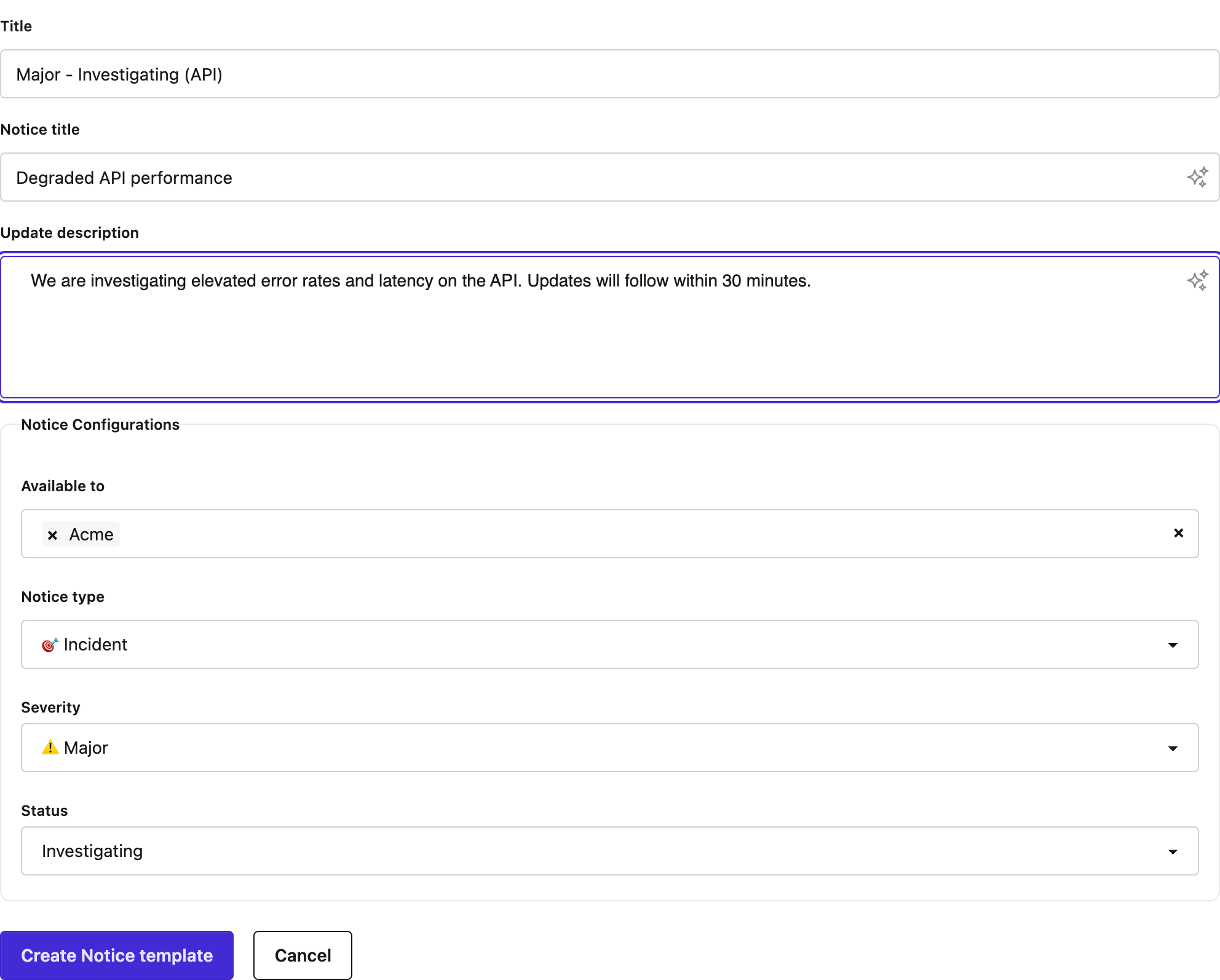
Templates pre-write notices for you. Your workspace starts with a set created during onboarding, one for each combination of severity and status for incidents, plus each status of planned and essential maintenance. Manage them under **Settings → Notice Templates**. Members can view templates; admins can create, edit, and delete them.
A template has a **Title** for the list, the **Notice title** and **Update description** it fills in, and the conditions it applies to: **Notice type**, **Severity** or **Maintenance type**, and **Status**. **Available to** restricts it to specific status pages; leave it empty to offer it on all of them.
You do not pick a template from a menu. When you open a new notice form, the title and description are filled from the template whose conditions match the type, status, and severity currently selected. Change the severity or click a different step and the text swaps to the matching template. The moment you start typing in either field, matching stops so your words are never overwritten.
{% hint style="info" %}
**The Resolved incident template is also used by Incident Management.** When an internal incident is resolved, its linked notices receive a Resolved update with this template's description. Keep it generic enough to fit any incident.
{% endhint %}