> For the complete documentation index, see [llms.txt](https://docs.statuspal.io/llms.txt). Markdown versions of documentation pages are available by appending `.md` to page URLs; this page is available as [Markdown](https://docs.statuspal.io/next/status-pages/email-sending-domains.md).
# Email sending domains
Send subscriber emails from your own domain by authenticating it with a few DNS records, and allow adding subscribers without a confirmation email.
By default, the emails your subscribers receive come from a shared StatusPal Next address. Authenticating your own domain changes the sender to `noreply@` your domain, which looks right to your customers, lands in fewer spam folders, and lets you add subscribers directly.
## Why authenticate a sending domain
* **Emails carry your name.** Notifications are sent from `noreply@yourdomain.com` instead of the shared StatusPal Next sender.
* **Better deliverability.** Recipients' mail servers verify that StatusPal Next is allowed to send on your behalf, which is what the DKIM and DMARC records below establish.
* **Subscribers without confirmation emails.** Adding a subscriber by hand or importing a list normally sends each address a confirmation email first. With an authenticated domain you can switch that requirement off, because the mail now comes from you. See [Subscribers and notifications](/next/status-pages/subscribers-and-notifications.md).
Sending domains are managed for the whole workspace under **Settings → Email Sending** and are admin only. The Free plan includes one.
## Add a sending domain
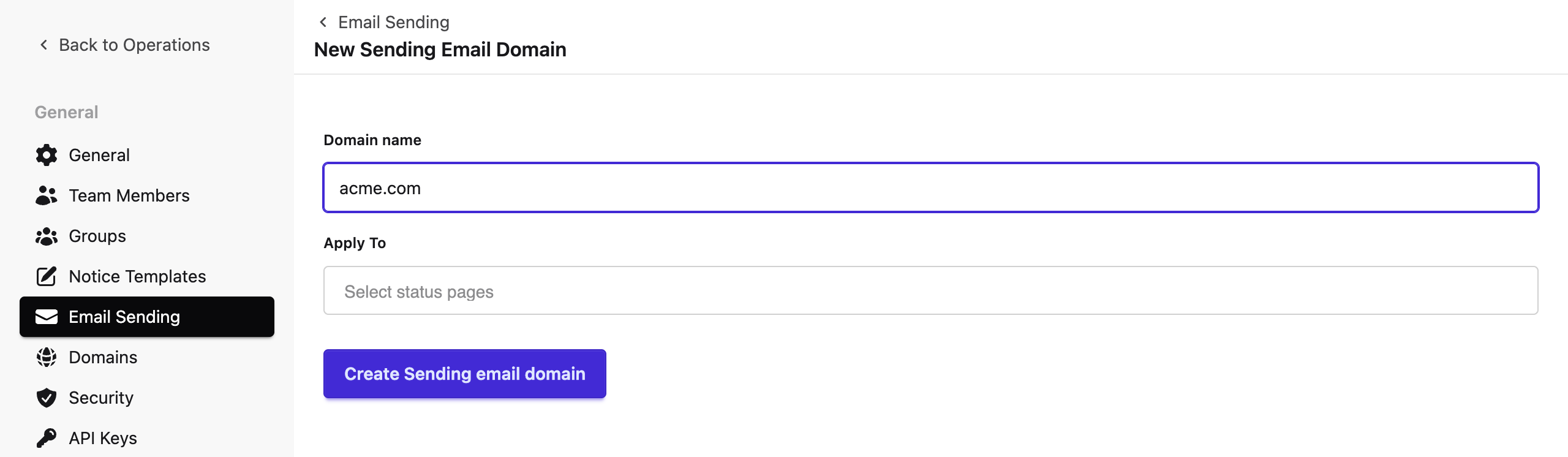
Click **New Sending Email Domain** and fill in:
* **Domain name**: the domain emails should come from, for example `acme.com` or `status.acme.com`. You need access to its DNS records.
* **Apply To**: the status pages that should send from this domain. Leave it empty to make this the **default** domain for every page in the workspace. Once a default exists, any further domain has to name specific pages, and a page can belong to only one sending domain.
Click **Create**. StatusPal Next registers the domain with its email provider and shows the DNS records you need to add. The domain name cannot be changed afterwards; delete and recreate the domain if you need a different one.
## Add the DNS records
The table lists every record to create at your DNS provider, with its **Type**, **Name**, and **Value**. Click a name or value to copy it. Add all of them:
* **Brevo code**: a TXT record at the root of the domain that proves you control it. Some providers reject `@` as the name; enter the bare domain or leave the name empty instead, as the tooltip explains.
* **DKIM**: CNAME records that let recipients verify the emails were signed for your domain.
* **DMARC**: a TXT record at `_dmarc` that tells recipients what to do with mail that fails the checks.
If you set up a subdomain such as `status.acme.com`, the names shown already include the subdomain part where needed. Create the records exactly as displayed.
## Authenticate the domain
Once the records are in place, click **Authenticate this email domain**. StatusPal Next asks the email provider to check them and marks each record **Authenticated** or **Not authenticated**. DNS propagation can take up to 48 hours, so an early attempt may leave some records unverified. Come back and click the button again later; nothing is lost.
The domain's own status, shown in the table on the Email Sending page, is **Not authenticated** until every record passes, **Authenticated** once they all do, and **Failed** if the provider could not complete the check. An authenticated domain shows a **Re-authenticate** button, useful after you change DNS providers.
## What changes once authenticated
From the moment the domain is authenticated, every notification and confirmation email for the assigned status pages is sent from `noreply@` your domain. Replies go to that address, so make sure it exists or forwards somewhere if you want to read them.
On those pages, the **Subscriptions** area also gains the option to add or import subscribers without requiring a confirmation email. Use it for lists of people who have already agreed to hear from you, such as your own customers migrating from another tool.
## Remove a domain
Click **Delete** next to the domain on the Email Sending page, or **Delete Sending Email Domain** on its own page. The domain is removed from the email provider and its pages fall back to the shared StatusPal Next sender immediately. Subscribers already confirmed keep receiving updates; subscribers added without confirmation stay subscribed too. You can remove the DNS records at your provider afterwards.