> For the complete documentation index, see [llms.txt](https://docs.statuspal.io/llms.txt). Markdown versions of documentation pages are available by appending `.md` to page URLs; this page is available as [Markdown](https://docs.statuspal.io/next/status-pages/customize-your-page.md).
# Customize your page
Set your status page's name, address, and timezone, brand it with your logo and colours, shape the header and footer, and decide what visitors can see and subscribe to.
Your status page should look like part of your product, not a third-party tool. This page covers the two settings screens that control that: **General** for the name, address, and timezone, and **Customization** for everything visual. Both live under your status page's **Settings** and are available to admins only.
## General settings and timezone
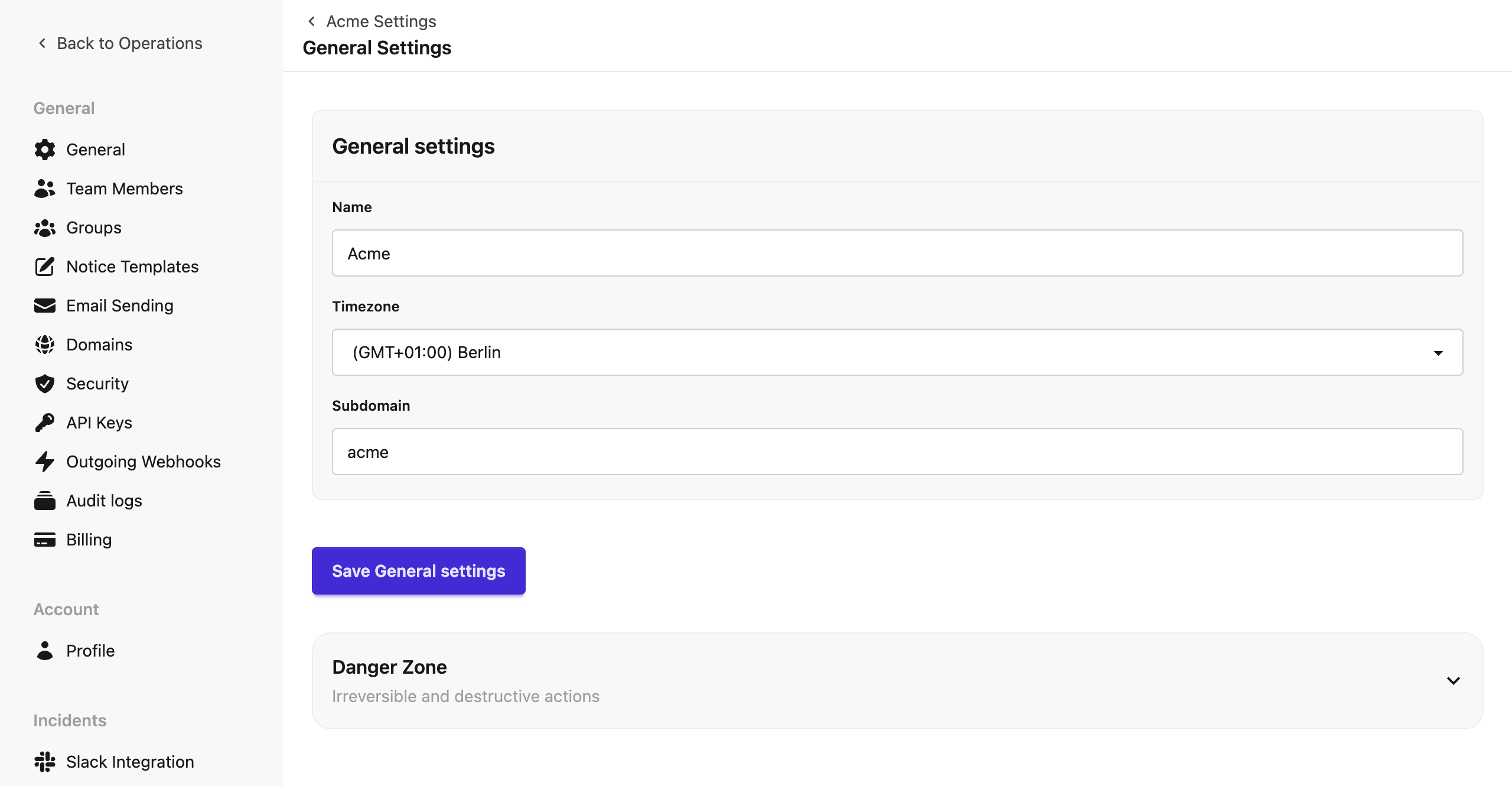 Open your status page's settings and choose **General**. Three fields define the page:
* **Name**: how the page is called in the admin console and, unless you set a title under Customization, in the browser tab and header of the page itself.
* **Timezone**: the timezone every date on the page is displayed in, and the one used when you schedule maintenance. Pick the timezone most of your audience is in, not the one your servers run in.
* **Subdomain**: the first part of the page's default address. It must be lowercase letters, numbers, and dashes, and unique across StatusPal Next.
Click **Save General settings**.
{% hint style="warning" %}
**Changing the subdomain changes the address.** Links you have shared, bookmarks, and RSS subscriptions pointing at the old address stop working. If you need a memorable address, add a [custom domain](/next/status-pages/custom-domains.md) instead of renaming the subdomain.
{% endhint %}
The **Danger Zone** at the bottom holds **Delete Status Page**. Deletion removes the page with all its notices, services, and subscribers and cannot be undone.
## Branding, logos, and light/dark appearance
Open **Settings → Customization**. The first three cards control how the page looks.
Open your status page's settings and choose **General**. Three fields define the page:
* **Name**: how the page is called in the admin console and, unless you set a title under Customization, in the browser tab and header of the page itself.
* **Timezone**: the timezone every date on the page is displayed in, and the one used when you schedule maintenance. Pick the timezone most of your audience is in, not the one your servers run in.
* **Subdomain**: the first part of the page's default address. It must be lowercase letters, numbers, and dashes, and unique across StatusPal Next.
Click **Save General settings**.
{% hint style="warning" %}
**Changing the subdomain changes the address.** Links you have shared, bookmarks, and RSS subscriptions pointing at the old address stop working. If you need a memorable address, add a [custom domain](/next/status-pages/custom-domains.md) instead of renaming the subdomain.
{% endhint %}
The **Danger Zone** at the bottom holds **Delete Status Page**. Deletion removes the page with all its notices, services, and subscribers and cannot be undone.
## Branding, logos, and light/dark appearance
Open **Settings → Customization**. The first three cards control how the page looks.
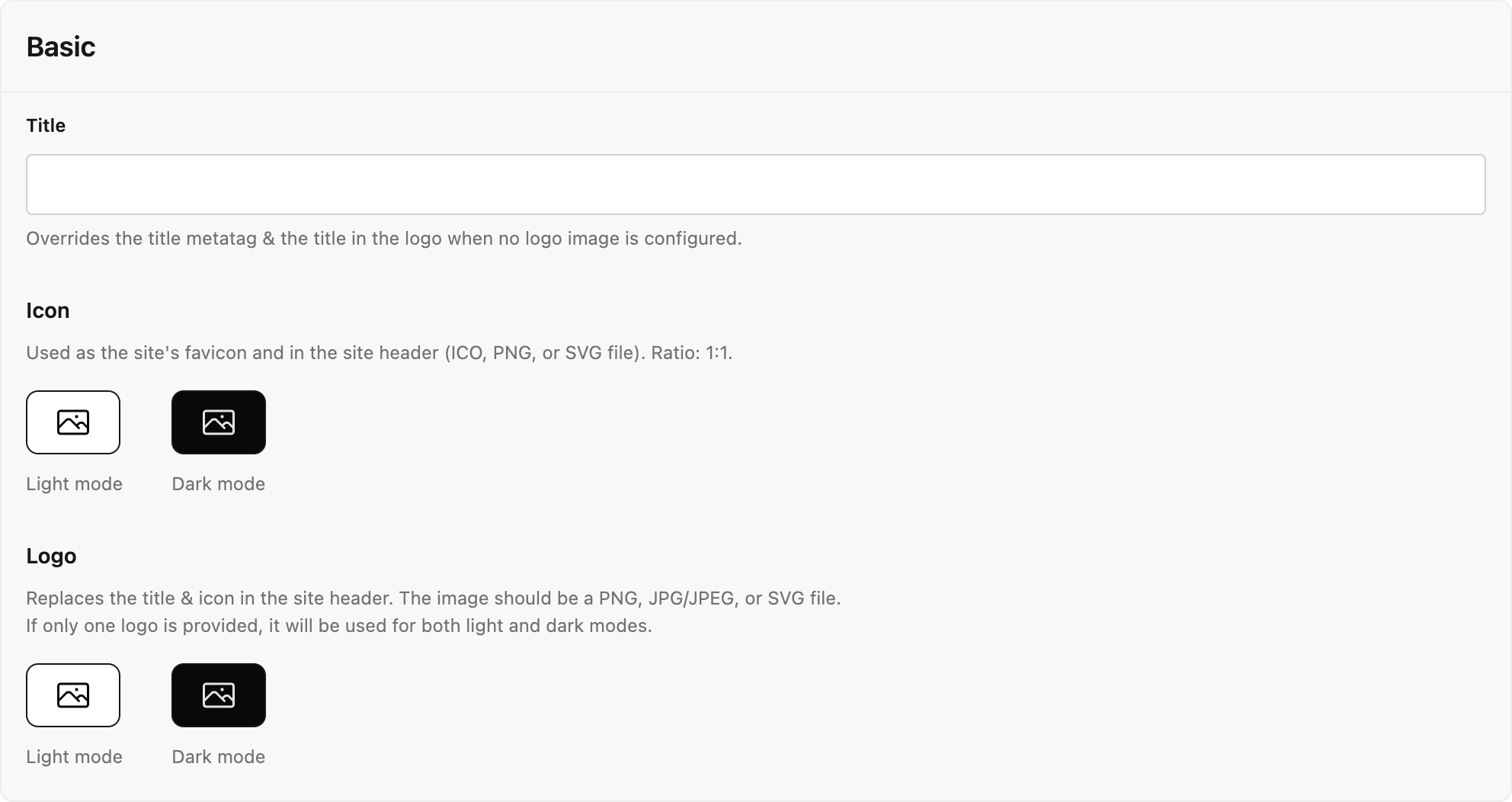 **Basic** holds your identity:
* **Title** overrides the browser tab title and the text shown in the header when there is no logo. Leave it empty to use the page name followed by "Status".
* **Icon** is the favicon, also shown in the header next to the title. Upload an ICO, PNG, or SVG with a 1:1 ratio, up to 1 MB. There is a slot for light mode and one for dark mode.
* **Logo** replaces the title and icon in the header. Upload a PNG, JPG, or SVG up to 2 MB. If you provide only one, it is used in both modes, so pick a version that reads on both backgrounds or upload two.
**Theme / Mode** decides the colour scheme visitors get. **Default mode** is **System** (follow the visitor's device), **Light**, or **Dark**. Switch on **Show mode toggle** to let visitors flip between light and dark themselves.
**Basic** holds your identity:
* **Title** overrides the browser tab title and the text shown in the header when there is no logo. Leave it empty to use the page name followed by "Status".
* **Icon** is the favicon, also shown in the header next to the title. Upload an ICO, PNG, or SVG with a 1:1 ratio, up to 1 MB. There is a slot for light mode and one for dark mode.
* **Logo** replaces the title and icon in the header. Upload a PNG, JPG, or SVG up to 2 MB. If you provide only one, it is used in both modes, so pick a version that reads on both backgrounds or upload two.
**Theme / Mode** decides the colour scheme visitors get. **Default mode** is **System** (follow the visitor's device), **Light**, or **Dark**. Switch on **Show mode toggle** to let visitors flip between light and dark themselves.
 **Theme base colors** sets two colours as hex values, each with a light and a dark mode variant. **Primary color** is used for buttons, links, and highlights. **Primary content color** is the text and icon colour drawn on top of it, so keep the contrast high. If you set only the light value, it is reused in dark mode.
Click **Save customization settings** after any change. The page updates immediately for every visitor.
## Subscription options
**Theme base colors** sets two colours as hex values, each with a light and a dark mode variant. **Primary color** is used for buttons, links, and highlights. **Primary content color** is the text and icon colour drawn on top of it, so keep the contrast high. If you set only the light value, it is reused in dark mode.
Click **Save customization settings** after any change. The page updates immediately for every visitor.
## Subscription options
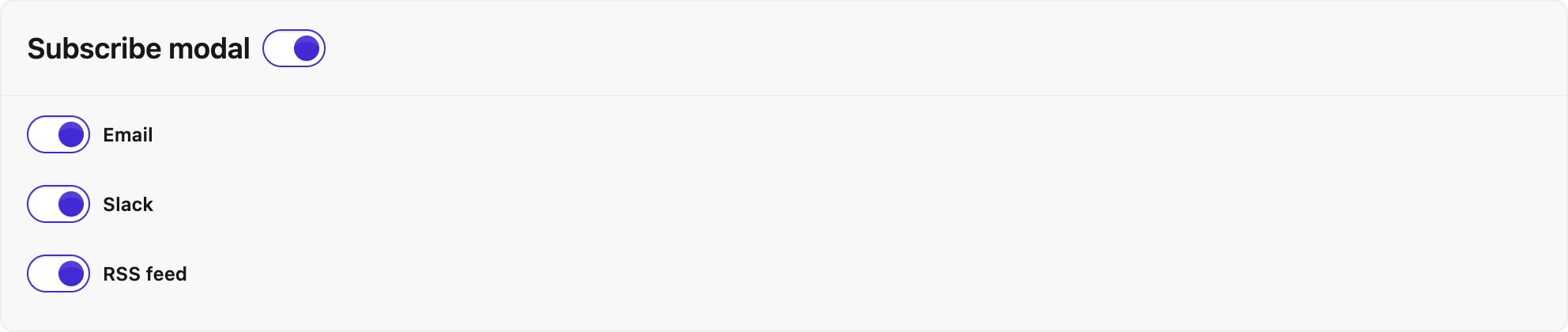 The **Subscribe modal** card controls the subscribe button on your page and the dialog it opens.
* Switch the card off to remove the subscribe button entirely. Visitors can still read the page, but nobody new can sign up for updates. Use this for internal pages where everyone who needs updates is already added by an admin.
* With the card on, choose which tabs the dialog offers: **Email**, **Slack**, **RSS feed**, and **Calendar feed**. The first enabled tab is the one visitors land on.
{% hint style="info" %}
**A tab only appears if the channel is also enabled for notifications.** Email, Slack, RSS, and Calendar each have a second switch under **Settings → Notifications** that controls whether that channel is available at all. A channel must be on in both places to show up in the dialog. See [Subscribers and notifications](/next/status-pages/subscribers-and-notifications.md).
{% endhint %}
## Uptime graphs and notice periods
The **Subscribe modal** card controls the subscribe button on your page and the dialog it opens.
* Switch the card off to remove the subscribe button entirely. Visitors can still read the page, but nobody new can sign up for updates. Use this for internal pages where everyone who needs updates is already added by an admin.
* With the card on, choose which tabs the dialog offers: **Email**, **Slack**, **RSS feed**, and **Calendar feed**. The first enabled tab is the one visitors land on.
{% hint style="info" %}
**A tab only appears if the channel is also enabled for notifications.** Email, Slack, RSS, and Calendar each have a second switch under **Settings → Notifications** that controls whether that channel is available at all. A channel must be on in both places to show up in the dialog. See [Subscribers and notifications](/next/status-pages/subscribers-and-notifications.md).
{% endhint %}
## Uptime graphs and notice periods
 Two cards control the history and forecast sections of the page.
**Uptime graph** shows or hides the graph of daily uptime under your services. When it is on, **Period** decides how far back it reaches: **30**, **60**, or **90 days**. The graph is built from your incident notices, so what it shows and how downtime is counted is explained in [Services and containers](/next/status-pages/services-and-containers.md#understand-overall-status-and-uptime-history).
**Notice periods** sets how far ahead and how far back the page shows notices:
* **Planned maintenance shown before** decides how far ahead scheduled maintenance appears on the page: **7**, **14**, or **28 days** before it starts. A window scheduled further out than the period stays hidden until it comes within range. Choose a longer period if your customers plan around your maintenance windows.
* **Past notices shown for** decides how long incidents and maintenance windows stay on the page after they end: **7** (the default), **14**, or **28 days**. They are listed under **Past notices** at the bottom of the page, most recent first. Older notices remain on the **History** page.
## Navigation and footer
Two cards control the history and forecast sections of the page.
**Uptime graph** shows or hides the graph of daily uptime under your services. When it is on, **Period** decides how far back it reaches: **30**, **60**, or **90 days**. The graph is built from your incident notices, so what it shows and how downtime is counted is explained in [Services and containers](/next/status-pages/services-and-containers.md#understand-overall-status-and-uptime-history).
**Notice periods** sets how far ahead and how far back the page shows notices:
* **Planned maintenance shown before** decides how far ahead scheduled maintenance appears on the page: **7**, **14**, or **28 days** before it starts. A window scheduled further out than the period stays hidden until it comes within range. Choose a longer period if your customers plan around your maintenance windows.
* **Past notices shown for** decides how long incidents and maintenance windows stay on the page after they end: **7** (the default), **14**, or **28 days**. They are listed under **Past notices** at the bottom of the page, most recent first. Older notices remain on the **History** page.
## Navigation and footer
 The **Layout** card, at the bottom of the Customization page, shapes what surrounds the status content.
* **Website url** is required. Your logo or title in the header links there, so visitors can get back to your main site in one click.
* **Footer heading** is a short line above the footer links, for example your company name or "Need help?".
* **Navigation** is the list of footer links. Click **Add link**, fill in a **Title** and a **Url**, and repeat for each link. Support, documentation, and your main site are the usual candidates. The red cross removes a link.
* **Copyright text** replaces the default line, which reads "Copyright © *year* - All right reserved by *your organization*".
The **Layout** card, at the bottom of the Customization page, shapes what surrounds the status content.
* **Website url** is required. Your logo or title in the header links there, so visitors can get back to your main site in one click.
* **Footer heading** is a short line above the footer links, for example your company name or "Need help?".
* **Navigation** is the list of footer links. Click **Add link**, fill in a **Title** and a **Url**, and repeat for each link. Support, documentation, and your main site are the usual candidates. The red cross removes a link.
* **Copyright text** replaces the default line, which reads "Copyright © *year* - All right reserved by *your organization*".