> For the complete documentation index, see [llms.txt](https://docs.statuspal.io/llms.txt). Markdown versions of documentation pages are available by appending `.md` to page URLs; this page is available as [Markdown](https://docs.statuspal.io/next/status-pages/custom-domains.md).
# Custom domains
Serve your status page at an address you own, such as status.acme.com, with DNS verification and SSL handled for you.
Every status page starts life at a StatusPal Next subdomain. A custom domain puts it at an address on your own domain instead, so the link you give customers looks like part of your product and keeps working if you ever change the subdomain.
## What a custom domain does
A custom domain is a hostname you own, typically `status.yourcompany.com`, pointed at StatusPal Next. Visitors see the status page at that address, with a valid HTTPS certificate, and nothing in the browser reveals the underlying subdomain. A page can have several domains at once, for example a primary address plus an older one that redirects to it. Custom domains are not available on the Free plan; the Domains page tells you when an upgrade is needed.
## Add a domain and assign it to a status page
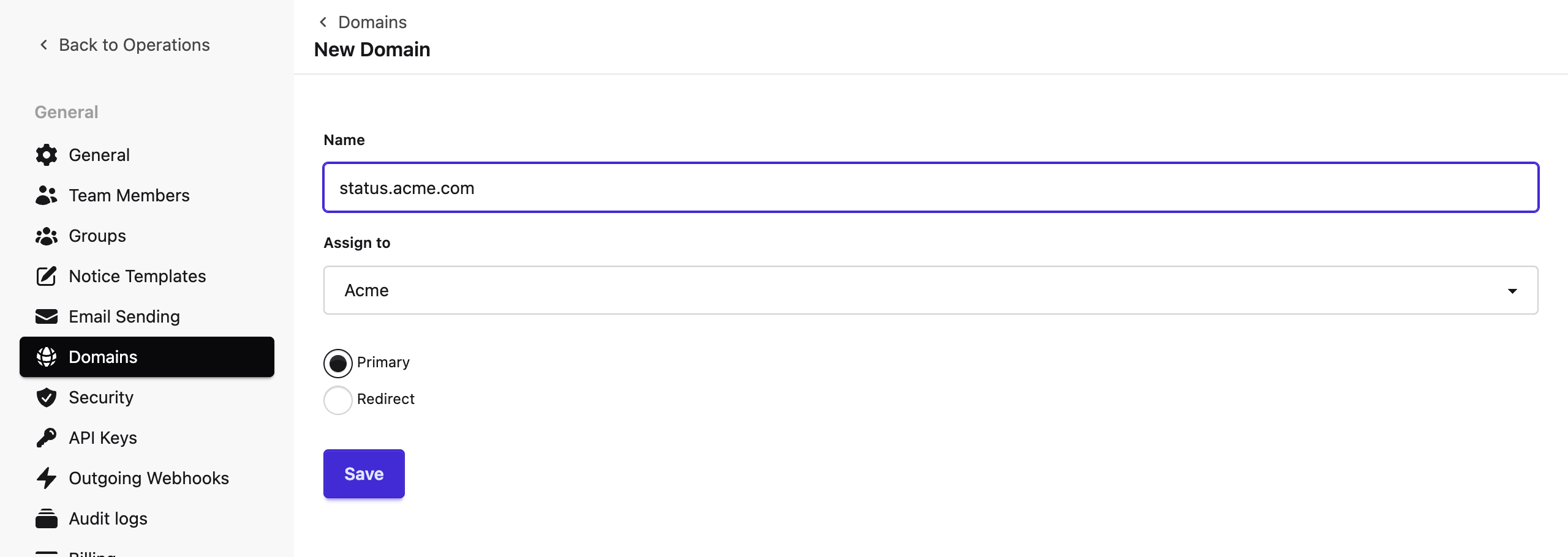
Go to **Settings → Domains** and click **New Custom Domain**. Fill in:
* **Name**: the full hostname, for example `status.acme.com`. Use a subdomain you control. Apex domains such as `acme.com` need a CNAME record, which most DNS providers do not allow at the root.
* **Assign to**: the status page this address should serve.
* **Primary** or **Redirect**: whether this is the page's main address or one that forwards to it. The first domain on a page is normally primary.
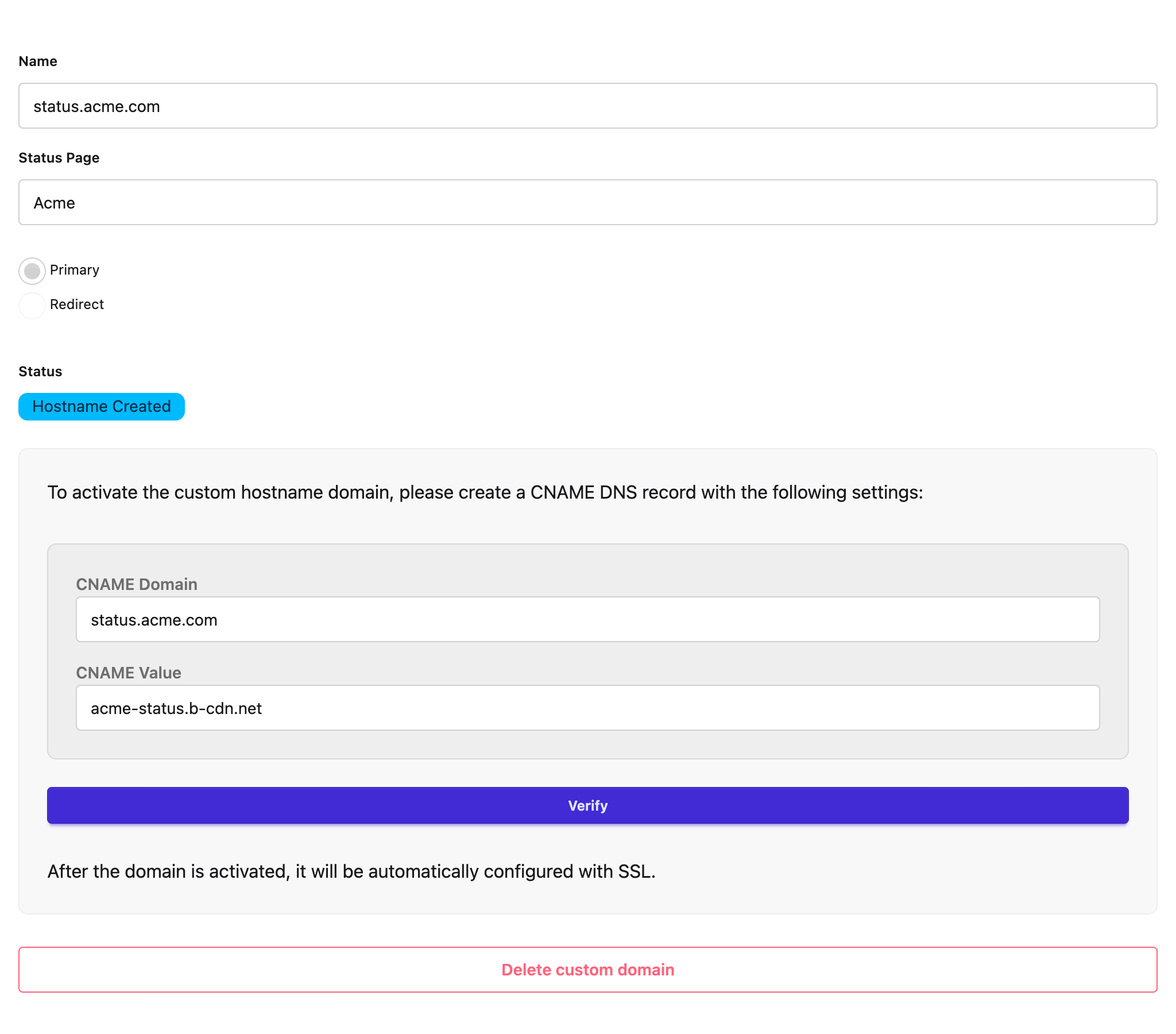
Click **Save**. The domain page opens with the DNS record you need to create.
## Point your DNS at StatusPal Next
The domain page shows a **CNAME Domain**, which is your hostname, and a **CNAME Value**, which is the StatusPal Next hostname to point it at. At your DNS provider, create a CNAME record for the hostname with that value. Leave any existing records for other hostnames alone.
DNS changes can take from a minute to a few hours to propagate, depending on your provider and the record's time to live. Once you have created the record, click **Verify** on the domain page. If verification fails, wait a little longer and use the **Refresh** link next to the status to check again.
{% hint style="warning" %}
**Proxying breaks verification.** If your DNS provider offers a proxy or CDN mode on the record, for example an orange cloud in Cloudflare, switch it off for this hostname. The record must resolve directly to the value shown, otherwise the certificate cannot be issued.
{% endhint %}
## Follow the activation status
The badge on the domain page tells you where the domain is in its setup:
| Status | What is happening |
| --------------------------- | --------------------------------------------------------- |
| Scheduled | The domain was just saved and is queued for setup |
| Creating hostname | StatusPal Next is registering the hostname with its CDN |
| Hostname created | Ready for your CNAME record. Create it, then click Verify |
| Verifying DNS records | Your record is being checked |
| Configuring SSL certificate | DNS verified, a certificate is being issued |
| Active | The domain serves your status page over HTTPS |
Each step can fail, and the badge says so: **Failed to create hostname**, **Failed to verify DNS records**, **Failed to configure SSL certificate**, and **Failed to delete hostname**. A failed DNS verification usually means the record has not propagated yet or points somewhere else; fix it and click **Verify** again. A failed certificate shows the reason on the page and offers **Configure SSL** to retry. If a failure persists after a retry, contact support with the domain name.
## Primary and redirect domains
The **primary** domain is the canonical address of the page, the one StatusPal Next uses when it links to the page. A **redirect** domain forwards visitors to the primary, which is how you keep an old address alive after moving to a new one.
Each page has exactly one primary domain. To promote another domain, open it and click **Set as primary**; the previous primary becomes a redirect. A primary domain cannot be deleted while the page still has redirect domains, so promote another one first or remove the redirects. Deleting a domain releases the hostname; if it is mid-setup the deletion is queued and the badge shows it until the hostname is gone.
## SSL certificates
You never upload a certificate. As soon as DNS verification succeeds, StatusPal Next requests a certificate for the hostname, installs it, and forces HTTPS, so plain HTTP requests are redirected. Renewal is automatic for as long as the CNAME record stays in place.
If the certificate step fails, the domain page explains why. The usual cause is a CNAME record that no longer resolves directly to the value shown, for example because a proxy was switched on. Fix the DNS and click **Configure SSL** to try again.