> For the complete documentation index, see [llms.txt](https://docs.statuspal.io/llms.txt). Markdown versions of documentation pages are available by appending `.md` to page URLs; this page is available as [Markdown](https://docs.statuspal.io/next/monitoring/understand-check-results.md).
# Understand check results
Read a check's page: its current status, uptime over the last hour, day, and week, response time trends, and the raw history behind them.
Every monitoring check has its own page that answers three questions at a glance: is the endpoint up right now, how reliable has it been, and how fast is it responding. Open it from **Monitoring → Checks** by clicking a check's name.
The checks list gives you the short version: a green dot for a check that is up, red for one that is down, and grey for a check that has not reported yet. Everything below lives on the check page itself.
{% hint style="info" %}
All history on this page covers the **last 7 days**. Checks run **every 60 seconds** from the regions you selected, and the page refreshes itself after each check cycle, so you never need to reload it while watching an incident unfold.
{% endhint %}
## Current status and uptime
The card at the top of the page shows the check's current state:
* **Operational** means the check has not crossed its down threshold. Individual failed probes can still appear in the Results tab while the check stays Operational.
* **Down** means the check has been failing for longer than its down threshold.
* **Pending** means the check was just created and is awaiting its first result.
Next to the status you see how long the check has been in that state, for example "Operational for 7d 20h 12m". Below it sit the request method and URL being probed, the check interval, and when the last check ran.
To the right, three figures summarize uptime over rolling windows:
| Window | What it covers |
| ------------- | --------------------------------------- |
| Last hour | The 60 minutes leading up to now |
| Last 24 hours | The past day |
| Last 7 days | The full history retained for the check |
Each percentage is the share of that window the check spent in an **Up** period. A check that has never gone down reads 100%. Anything else is shown to two decimals, and the figures turn red while the check is down. Until the check has produced results, the windows show a dash.
{% hint style="info" %}
**The down threshold shapes these numbers.** A check only enters a Down period once it has kept failing for the number of minutes set as its down threshold (5 by default). A single failed probe below that threshold is still visible in the Results tab, but it never starts a Down period, so it does not dent the uptime percentages. See [Configure checks](/next/monitoring/configure-checks.md) to adjust the threshold.
{% endhint %}
## Response time charts
The **Response time** panel plots how quickly the endpoint answered over time. Three figures sit above the chart:
* **Current** is the most recent point on the chart, the average response time across regions for the latest interval.
* **Avg** is the average of those points across the selected period.
* **Peak** is the highest point on the chart in the selected period, so the slowest interval average rather than the single slowest probe.
Switch the period with the **Last hour**, **Last 24 hours**, and **Last 7 days** tabs. The page opens on the last 24 hours. Each point on the line is the average response time across all regions that probed the endpoint in that interval, so a single slow region shows up as a bump rather than a spike. The chart refreshes together with the status card.
If a period has no data yet, the panel says so instead of drawing an empty chart. A new check needs a few minutes before the hour view has anything to show.
{% hint style="info" %}
You can publish this chart on your status page next to the service the check drives. That is a per-check setting under Status page automation, covered in [Connect checks to status pages](/next/monitoring/connect-checks-to-status-pages.md).
{% endhint %}
## Check executions and uptime changes
Below the chart, two tabs hold the history behind the summary figures.
### Uptime changes
The **Uptime changes** tab lists every time the check switched between Up and Down, newest first. Each row shows the status, when it started, when it ended, and how long it lasted. The current period shows **Ongoing** instead of an end time, and its duration keeps counting.
These are the periods the uptime percentages are calculated from. Because of the down threshold, a Down row starts when the threshold was crossed, not at the first failed probe, and the tab shows a single ongoing row until the check changes state for the first time. Long histories are paginated 25 rows at a time.
### Results
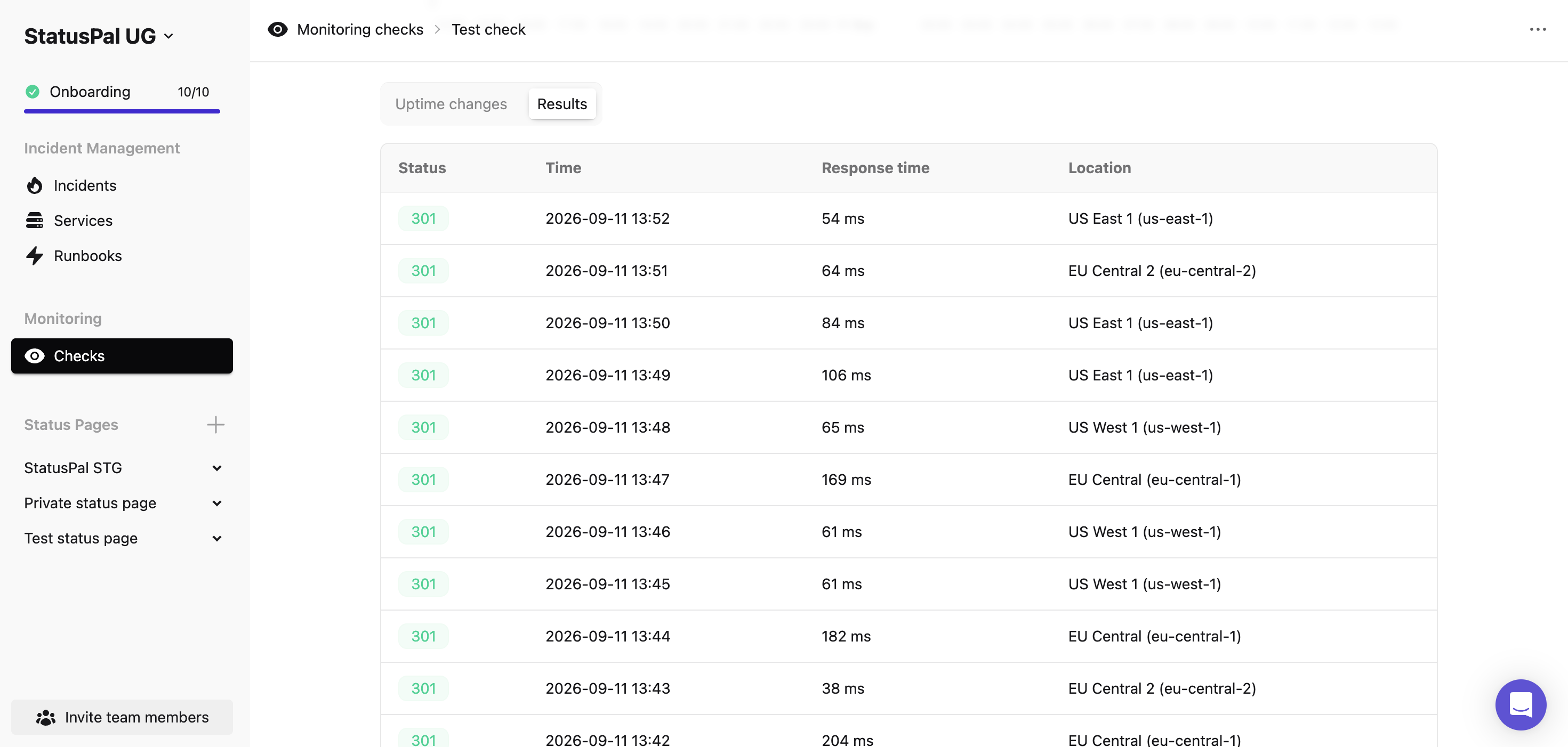
The **Results** tab shows the raw executions, one row per probe:
* **Status** is the HTTP status code the endpoint returned, or `tcp_connected` for a TCP check. A green badge means the probe counted as up: any 2xx or 3xx response, or a successful TCP connection. Red means it counted as a failure, including timeouts and connection errors.
* **Time** is when the probe ran.
* **Response time** is how long the endpoint took to answer, in milliseconds.
* **Location** is the region that ran the probe, such as US East 1 (us-east-1) or EU Central (eu-central-1). A check set to all regions rotates through the US and EU locations, so consecutive rows come from different places.
{% hint style="warning" %}
**Redirects count as up.** A 301 or 302 is a valid response, so a check pointed at a URL that redirects reports Operational without ever reaching the final page. Point the check at the URL that actually serves your content if that is what you want to verify.
{% endhint %}
Results are paginated 25 rows at a time. Use them to confirm what a Down period looked like from each region, or to spot a status code you did not expect before it turns into an outage.