> For the complete documentation index, see [llms.txt](https://docs.statuspal.io/llms.txt). Markdown versions of documentation pages are available by appending `.md` to page URLs; this page is available as [Markdown](https://docs.statuspal.io/next/incident-management/run-your-first-incident-drill.md).
# Run your first incident drill
Practise your incident workflow before you need it. This walkthrough declares a test incident, works it through Slack, and resolves it in about five minutes.
The best time to learn your incident workflow is before a real outage. A drill is an ordinary incident that you declare on purpose, work through end to end, and resolve. Nothing about it is special: you use the same screens, the same Slack commands, and the same runbooks your team will reach for at 3am.
This guide takes about five minutes. By the end you will have declared an incident, seen it appear in Slack with the right people tagged, posted an update, and resolved it.
{% hint style="info" %}
A drill stays internal by default. As long as you leave **Publish to Status Page** switched off, nothing reaches your subscribers or appears on your public status page.
{% endhint %}
## Before you start
You can run a drill with nothing configured at all, straight from the dashboard. Two optional pieces make it much more useful, and both are worth setting up first if you plan to run incidents from Slack.
### Connect Slack
Go to **Settings → Slack Integration** and connect your workspace. Once connected, StatusPal Next matches your organization's members to Slack accounts by email address and syncs them automatically once a day.
Members only get tagged in incident channels if their StatusPal Next email matches their Slack email. If someone is missing, check the **Synced Members** list on that page and use **Re-sync Members**.
### Add a runbook with a Slack step
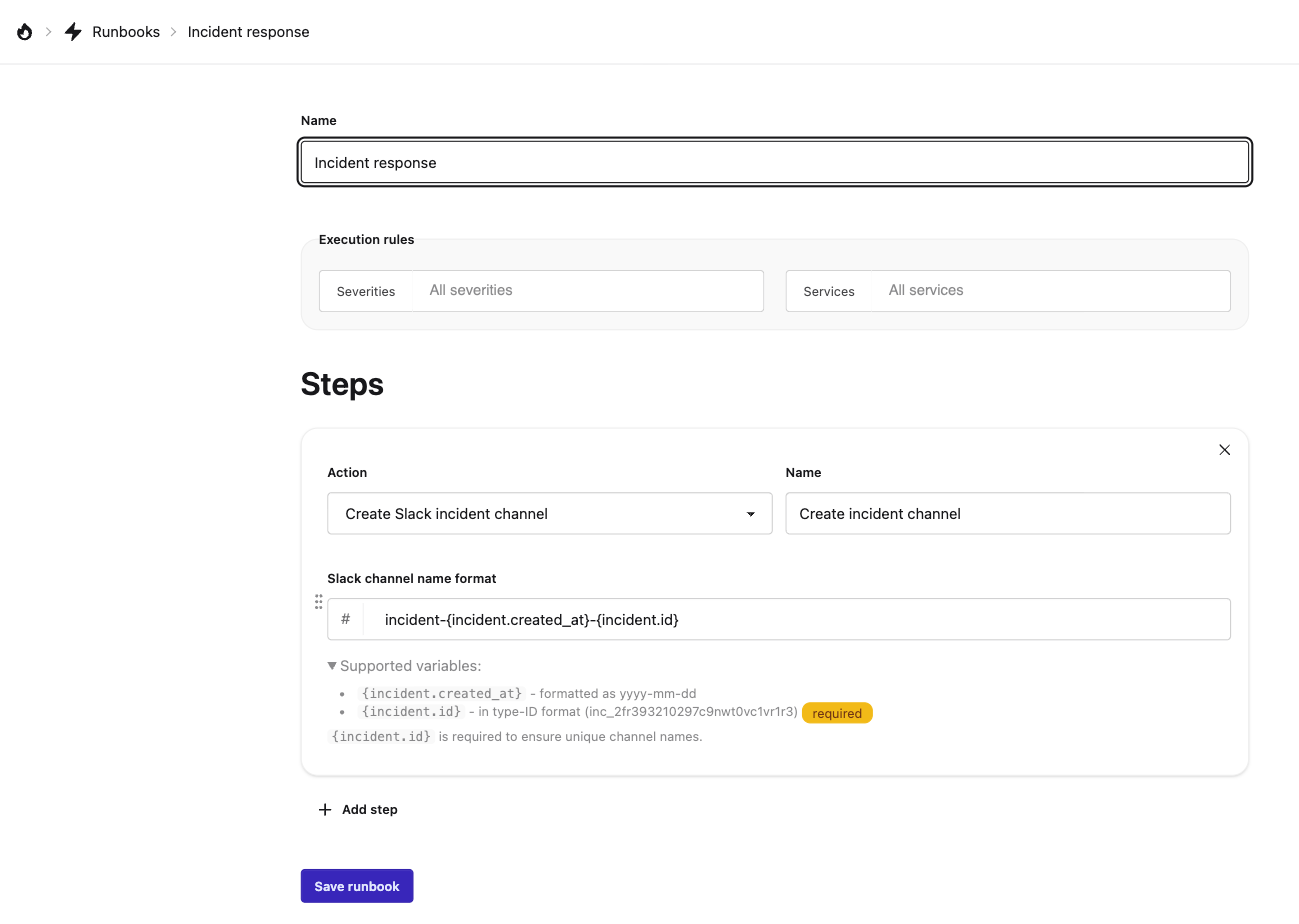
A runbook is a reusable response plan. For the drill, the step that matters is the one that creates a Slack channel.
Go to **Incident Management → Runbooks → Add runbook**, then:
1. Give the runbook a name.
2. Under **Execution rules**, choose which **Severities** and **Services** it applies to. Leave both empty to match every incident.
3. Click **Add step**. **Action** offers two types: **Create Slack incident channel**, which runs by itself the moment the incident is declared, and **Manual step: Run a script**, which appears on the incident for a human to work through. Choose the Slack one.
4. Fill in **Slack channel name format**.
The channel name accepts two variables:
| Variable | Notes |
| ----------------------- | ----------------------------------------------------------------------------------------------------------------------------- |
| `{incident.id}` | The incident's ID, for example `inc_2fr393210297c9nwt0vc1vr1r3`. **Required**, because it is what keeps channel names unique. |
| `{incident.created_at}` | The declaration date, formatted `yyyy-mm-dd`. |
{% hint style="warning" %}
A Slack channel is created only when your organization has Slack connected **and** the incident matches a runbook with a Slack step. If you declare an incident and no channel appears, one of those two is missing.
Every matching runbook fires, so if three runbooks match the incident you get three channels. Check your execution rules before drilling.
{% endhint %}
## Step 1: Declare the incident
Go to **Incident Management → Incidents** and click **Declare incident**.
| Field | What to put in it for a drill |
| ------------------------------ | ----------------------------------------------------------------------------------------------------------------------- |
| **Title** | Something unmistakable, for example `[DRILL] Test incident, please ignore`. |
| **Summary** | One line of context. Say that it is a practice run. |
| **Incident Status** | Leave on **Investigating**. The lifecycle is Investigating, Identified, Monitoring, Resolved. |
| **Affected Service** | Any service. This is an Incident Management service, not a status page service. |
| **Service Status** | **Degraded**, **Partial outage**, or **Unavailable**, in increasing order of impact. Pick the one you want to practise. |
| **Severity / business impact** | Optional, defaults to **None**. Choosing one lets you test which runbook fires. |
| **Commander** | Defaults to you. This is the person leading the response. |
| **Responders** | At least one person is required. |
| **Publish to Status Page** | **Leave off.** This is what keeps the drill invisible to customers. |
The **Publish to Status Page** toggle only appears once you have selected an affected service that is mapped to at least one status page component. For an unmapped service the card stays hidden, which also keeps a drill internal.
Click **Declare Incident**.
### Declaring from Slack instead
If Slack is connected, you can skip the dashboard entirely and run `/spal new` in any channel. It opens the same declare form as a Slack modal.
## Step 2: Watch it land in Slack
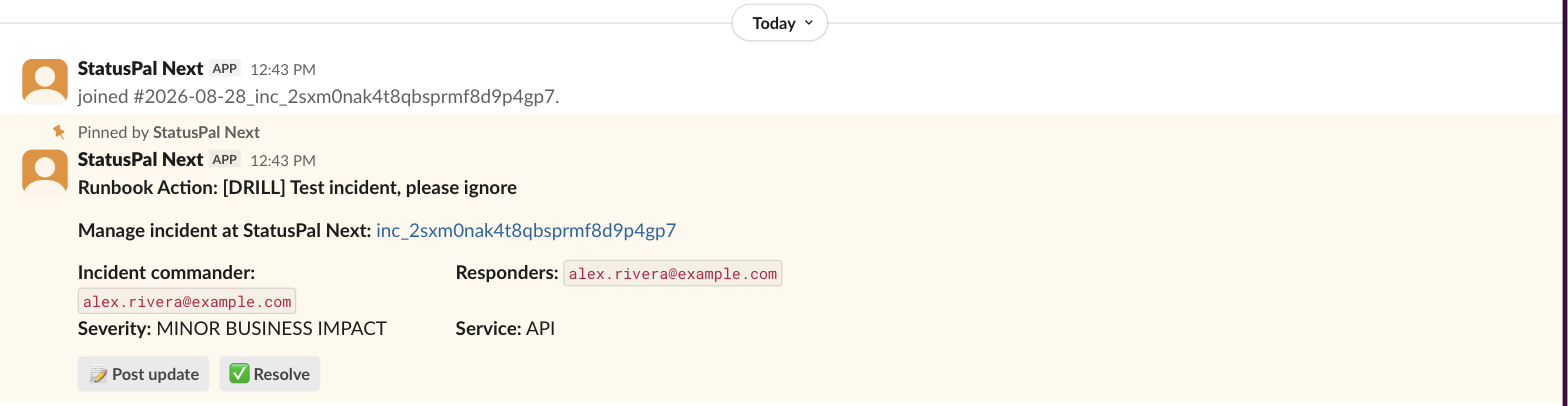
If your incident matched a runbook with a Slack step, a channel is created immediately and the commander and every responder are invited to it.
StatusPal Next pins a summary to the new channel: who is commanding, who is responding, the severity, the affected service, and a link back to the incident. It carries two buttons, **Post update** and **Resolve**, so the most common actions need no commands at all.
{% hint style="warning" %}
People are only invited if their StatusPal Next email matches their Slack email. If the channel comes up empty, that mapping is what to check first, on **Settings → Slack Integration**.
{% endhint %}
Back on the incident page, the **Timeline** records each channel as it is created, naming the runbook responsible.
For anything beyond those two buttons, the slash commands cover the rest:
| Command | Where you can run it |
| --------------- | --------------------------------------------------------------- |
| `/spal new` | Any channel. |
| `/spal update` | Only inside an incident channel that was created automatically. |
| `/spal resolve` | Only inside an incident channel that was created automatically. |
| `/spal help` | Any channel. Lists the commands and explains each one. |
{% hint style="info" %}
`/spal update` and `/spal resolve` work out which incident you mean from the channel you are in. That is why they only work in the auto-created channels.
{% endhint %}
## Step 3: Work the incident
Open the incident from **Incident Management → Incidents**.
Two things to practise here:
* **Manual runbook steps.** Every **Manual step: Run a script** step from every matching runbook is listed here for you to work through and mark complete. Slack steps are not listed, because they already ran when the incident was declared.
* **Post an update.** Write what you have found in the update box and click **Post Update**. Updates land on the timeline. If you switch on **Publish to Status Page** on the update itself, only the content of that card reaches your subscribers.
The right-hand **Properties** panel is where you change status, severity, service impact, commander, and responders as the response develops.
## Step 4: Resolve it
Open the **...** menu at the top right of the incident and choose **Resolve**.
You are asked to confirm before it goes through. From Slack you can do the same with the **Resolve** button on the pinned message, or by running `/spal resolve` in the incident channel. Both open a confirmation first.
Resolving does three things:
1. Sets the incident status to **Resolved**, so it drops off the **Ongoing** list.
2. Returns the affected service to **Operational**.
3. Resolves the linked public notice, if you published one.
{% hint style="info" %}
**Members can resolve incidents.** Only **admins** can delete one. Deleting removes the incident record entirely, so prefer resolving your drill and leaving it in the history where the team can review it.
{% endhint %}
One thing resolving does not do is tell Slack. The incident channel is left open, its pinned message keeps its buttons, and nobody in it is notified. Post a closing message there yourself and archive the channel when the drill is done.
## After the drill
Worth a few minutes with the team while it is fresh:
* Did the right people end up in the Slack channel? If someone was missing, their Slack and StatusPal Next email addresses probably differ.
* Did the runbook cover what you actually needed? Add the missing steps now.
* Did more channels get created than you expected? Tighten the execution rules on your runbooks.
Once you are happy with the shape of it, run the same drill with a published status page notice so you can see the subscriber-facing side too.