> For the complete documentation index, see [llms.txt](https://docs.statuspal.io/llms.txt). Markdown versions of documentation pages are available by appending `.md` to page URLs; this page is available as [Markdown](https://docs.statuspal.io/next/incident-management/respond-from-slack.md).
# Respond from Slack
Connect your Slack workspace so incidents reach your team where they already work: an announcement when one is declared, a channel per incident, and the right people pulled in automatically.
Connecting Slack is optional. What it changes is where the response happens: instead of asking people to watch a dashboard, the incident arrives in a channel with the commander and responders already invited, and the team can declare, update, and resolve without leaving Slack.
{% hint style="info" %}
**This is the Incident Management Slack integration, for your team.** It is separate from letting subscribers follow a status page from their own Slack workspace, which is covered in [Subscribers and notifications](/next/status-pages/subscribers-and-notifications.md).
{% endhint %}
Setting it up takes a couple of minutes. You need to be able to install apps in your Slack workspace, and to be an admin in StatusPal Next.
## Connect your workspace and match members
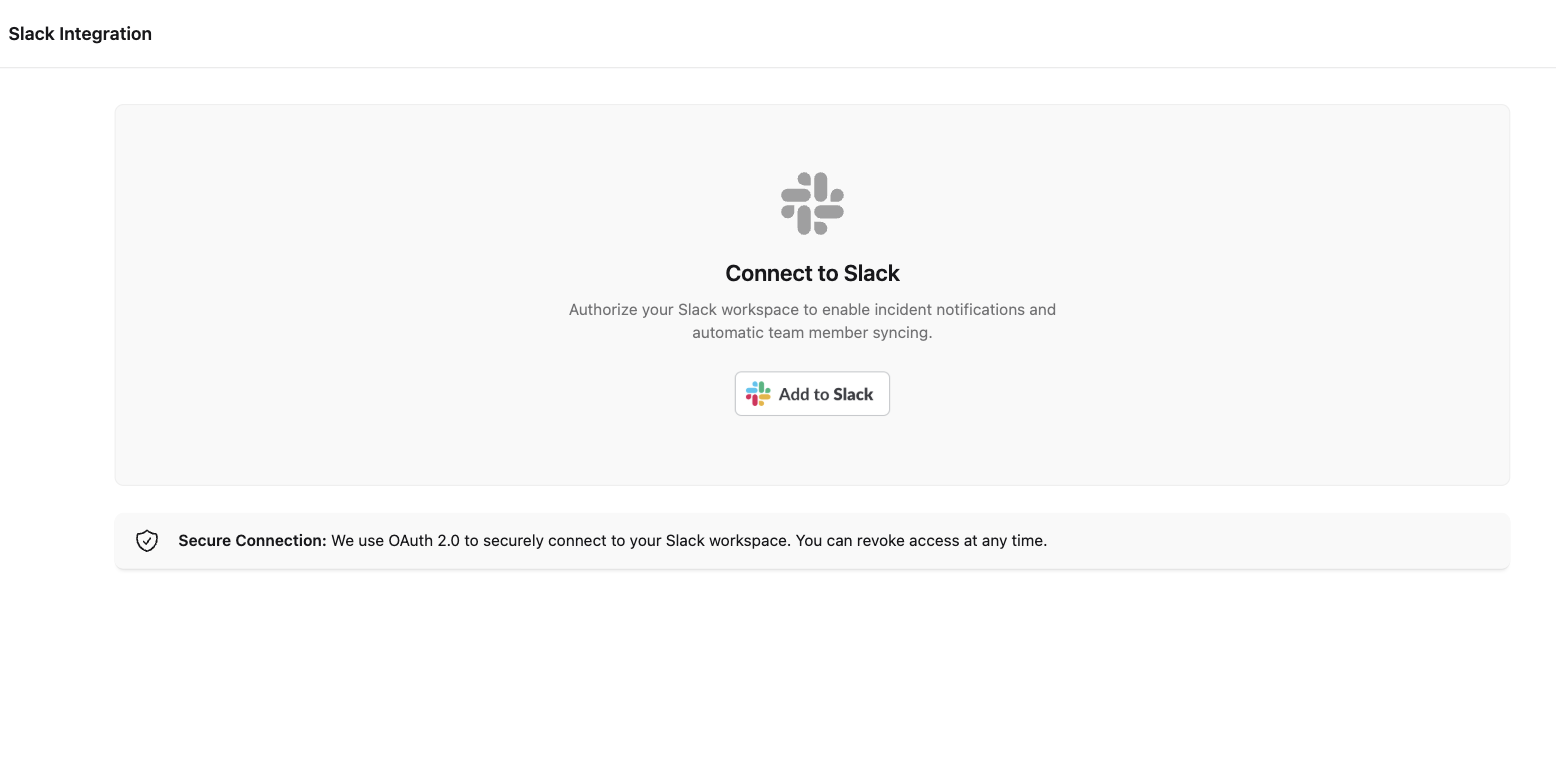
Go to **Settings → Slack Integration** and click **Add to Slack**.
Slack asks which workspace to install into and shows the permissions being requested. Review them and confirm. You are brought back to StatusPal Next, which confirms how many members it matched.
{% hint style="info" %}
Slack may show a notice that the app has not been reviewed. Slack shows this for any app not yet listed in its Marketplace. StatusPal Next is awaiting that review. The permissions below are all the app receives, and you can revoke access at any time from **Settings → Slack Integration**.
{% endhint %}
| Permission | What it is used for |
| -------------------------------- | ---------------------------------------------------------------------------- |
| `channels:manage` | Create the dedicated channel for each incident |
| `channels:read` | List the channels the app belongs to, so you can pick a notification channel |
| `chat:write` | Post the incident summary and the announcement |
| `pins:write` | Pin the summary to the top of the incident channel |
| `bookmarks:write` | Add the **Manage Incident** bookmark linking back to StatusPal Next |
| `commands` | Provide the `/spal` slash commands |
| `users:read`, `users:read.email` | Match your team members to Slack accounts by email |
StatusPal Next never reads your existing messages. It cannot see a channel until the app is added to it.
**Synced Members** on the same page lists everyone in your organization with a green tick if they were matched to a Slack account, and an amber icon if they were not. Matching is by **email address**, and it has to be exact. Someone who signed up to StatusPal Next with a personal address but uses their work address in Slack will not match, and will never be invited to an incident channel. When you have fixed an address, click **Re-sync Members**. Syncing also runs automatically once a day.
Any member can view the Slack Integration page. Connecting Slack, changing the notification channel, re-syncing members, and removing the authorization are admin actions.
To disconnect, click **Remove Authorization** on the same page and confirm. It clears the stored token, the workspace, the notification channel, and all member mappings, and StatusPal Next stops posting to Slack. Channels that were already created stay in Slack, along with their history. Reconnecting later starts a fresh authorization, which is also how you pick up any permissions the app has gained since you first connected.
## Configure notification and incident channels
Two kinds of channel are involved. The **notification channel** is one existing channel where every new incident is announced. **Incident channels** are created per incident, with the commander and responders invited.
Authorizing the workspace is not enough for the announcement: until the app has been **added to at least one channel**, there is nothing for it to post into, and the page shows this.
To fix it:
1. In Slack, open the channel you want announcements in.
2. Invite the app to it, for example by typing `/invite @StatusPal Next` in that channel.
3. Come back to **Settings → Slack Integration** and refresh the page.
4. Pick the channel from **Notification Channel** and click **Update Channel**.
Only channels the app has been added to appear in that list. Incident channels StatusPal Next created itself are excluded, because the announcement exists to reach people who are not in the incident channel yet. If the app already belonged to a channel when you authorized, StatusPal Next preselects one for you, preferring `#general`.
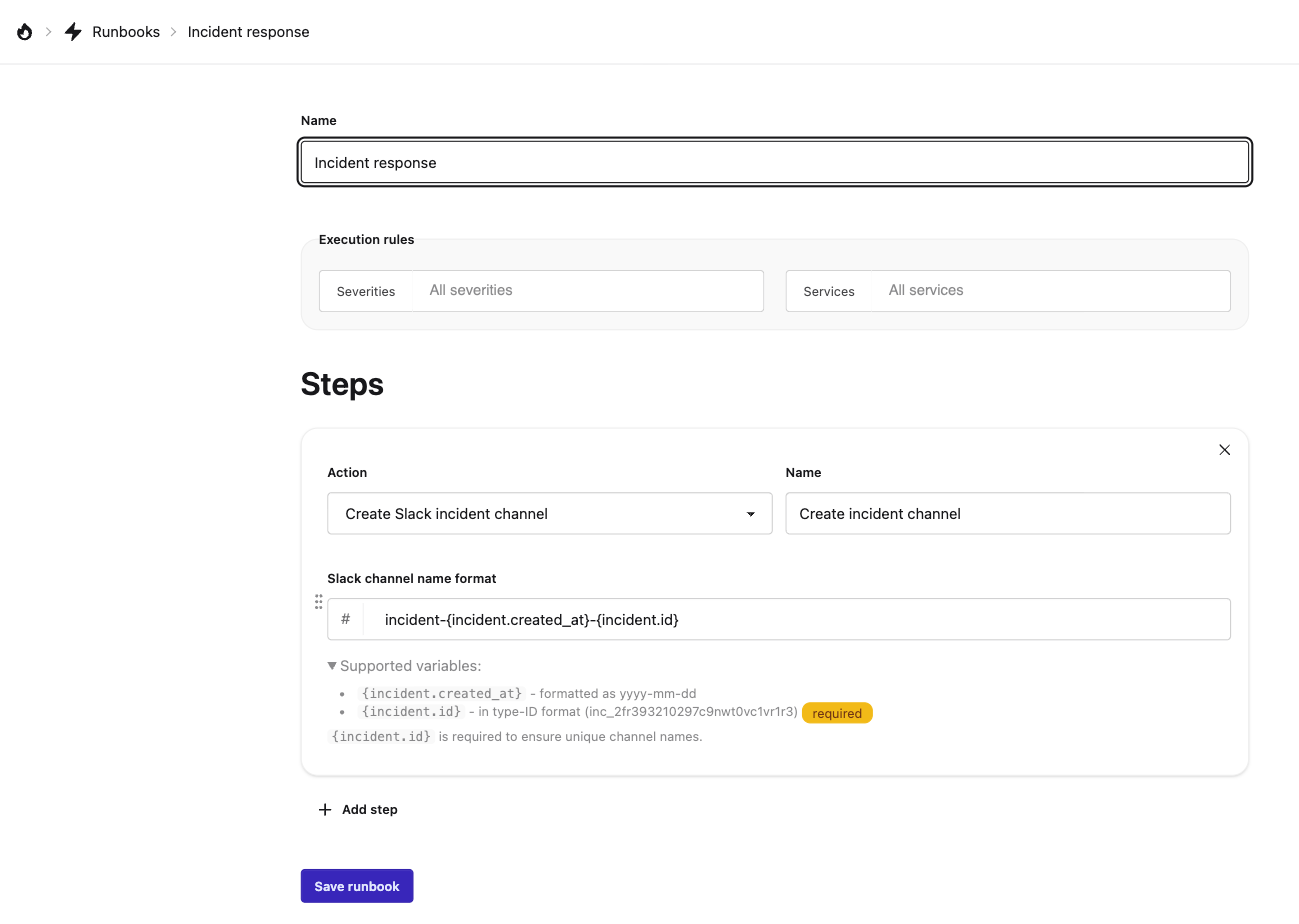
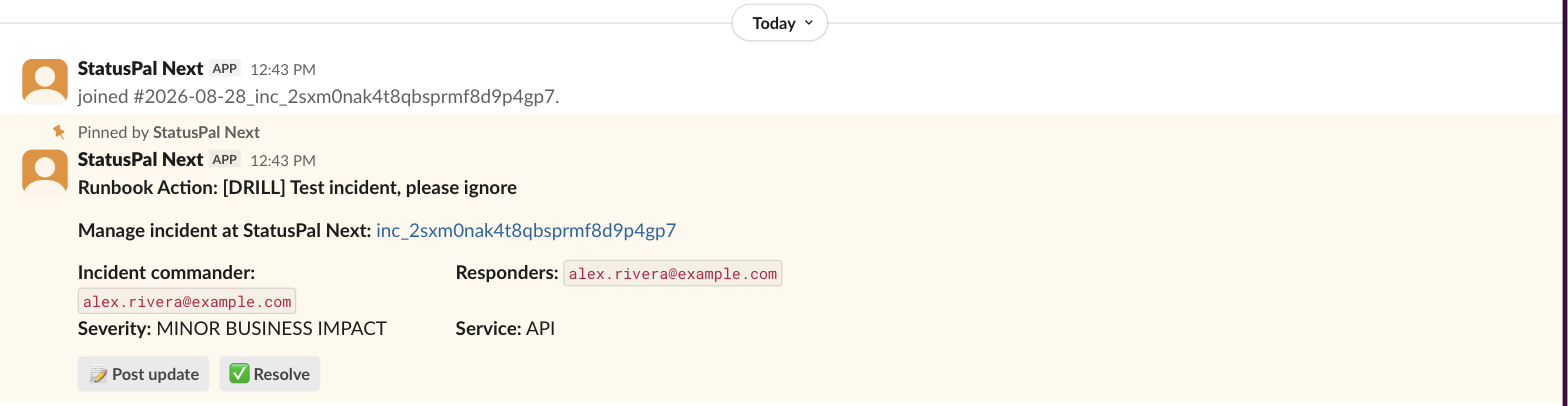
Incident channels come from [runbooks](/next/incident-management/runbooks.md). Add a runbook whose execution rules match the incidents you care about and give it a **Create Slack incident channel** step with a channel name format. When a matching incident is declared, the channel is created, the commander and responders are invited, and a summary is pinned at the top.
## Declare, update, and resolve incidents
Once connected, the whole incident lifecycle is available from Slack.
* **`/spal new`** opens a form to declare an incident, with the same fields as the web form: title, affected service, service status, severity, commander, responders, and an optional **Publish to Status Page** section with a public title, public message, and a subscribers toggle. Submitting it declares the incident exactly as the dashboard would, so runbooks fire and the announcement is posted.
* **`/spal update`** opens a form to post an update to an incident, again with the option to publish it to your status pages.
* **`/spal resolve`** resolves an incident after a confirmation.
* **`/spal help`** lists the commands and lets you pick one to read more.
In an incident channel you rarely need the commands. The pinned summary shows the title, the commander, responders, severity, and service, and carries two buttons: **Post update** and **Resolve**, which open the same forms. The **Manage Incident** bookmark at the top of the channel takes you to the incident page in StatusPal Next for anything Slack does not cover, such as completing manual runbook steps or editing the summary.
Everything you do from Slack is recorded on the incident's timeline in StatusPal Next, attributed to your user. See [Manage incidents](/next/incident-management/manage-incidents.md) for what each field means and how publishing works.
The fastest way to see all of this working end to end is a practice incident: [Run your first incident drill](/next/incident-management/run-your-first-incident-drill.md).