> For the complete documentation index, see [llms.txt](https://docs.statuspal.io/llms.txt). Markdown versions of documentation pages are available by appending `.md` to page URLs; this page is available as [Markdown](https://docs.statuspal.io/next/incident-management/manage-incidents.md).
# Manage incidents
Declare an incident, work it from the incident page, publish updates to your status pages, and resolve or delete it when you are done.
An incident is your team's internal record of something going wrong: who is leading, who is responding, what has been tried, and what customers have been told. This page walks through the full life of one, from declaring it to resolving it.
{% hint style="info" %}
**Incidents are internal. Incident notices are what your status page shows.** Everything on an incident stays inside your team unless you switch on **Publish to Status Page**, which creates and updates an incident notice on the mapped pages. If you only need to inform your status page audience and do not need responders or a timeline, post a notice directly instead. See [Incident, Maintenance & Info Notices](/next/status-pages/incident-maintenance-and-info-notices.md).
{% endhint %}
## Declare an incident
Go to **Incident Management → Incidents** and click **Declare incident**. You can also declare from Slack, see [Respond from Slack](/next/incident-management/respond-from-slack.md). The form asks for:
* **Title**: a short internal name for the incident, for example "Checkout API returning 500 errors". It shows in the incidents list, the timeline, and Slack messages.
* **Summary**: optional free text for what you know so far. You can edit it later from the incident page.
* **Incident Status**: where the response stands, one of **Investigating**, **Identified**, **Monitoring**, or **Resolved**. Most incidents start at Investigating.
* **Affected Service**: the [incident management service](/next/incident-management/configure-incident-management-services.md) that is impaired. Picking a service pre-fills the severity and decides whether the incident can be published.
* **Service Status**: how badly that service is affected, **Degraded**, **Partial outage**, or **Unavailable**. This immediately becomes the service's live status on the Services page.
* **Severity / business impact**: optional. **Minor**, **Major**, or **Critical**, pre-filled from the service's default. Severity drives which [runbooks](/next/incident-management/runbooks.md) match and the impact published to status pages.
* **Commander**: the person leading the response. Defaults to you.
* **Responders**: everyone helping. At least one is required, and you are added by default.
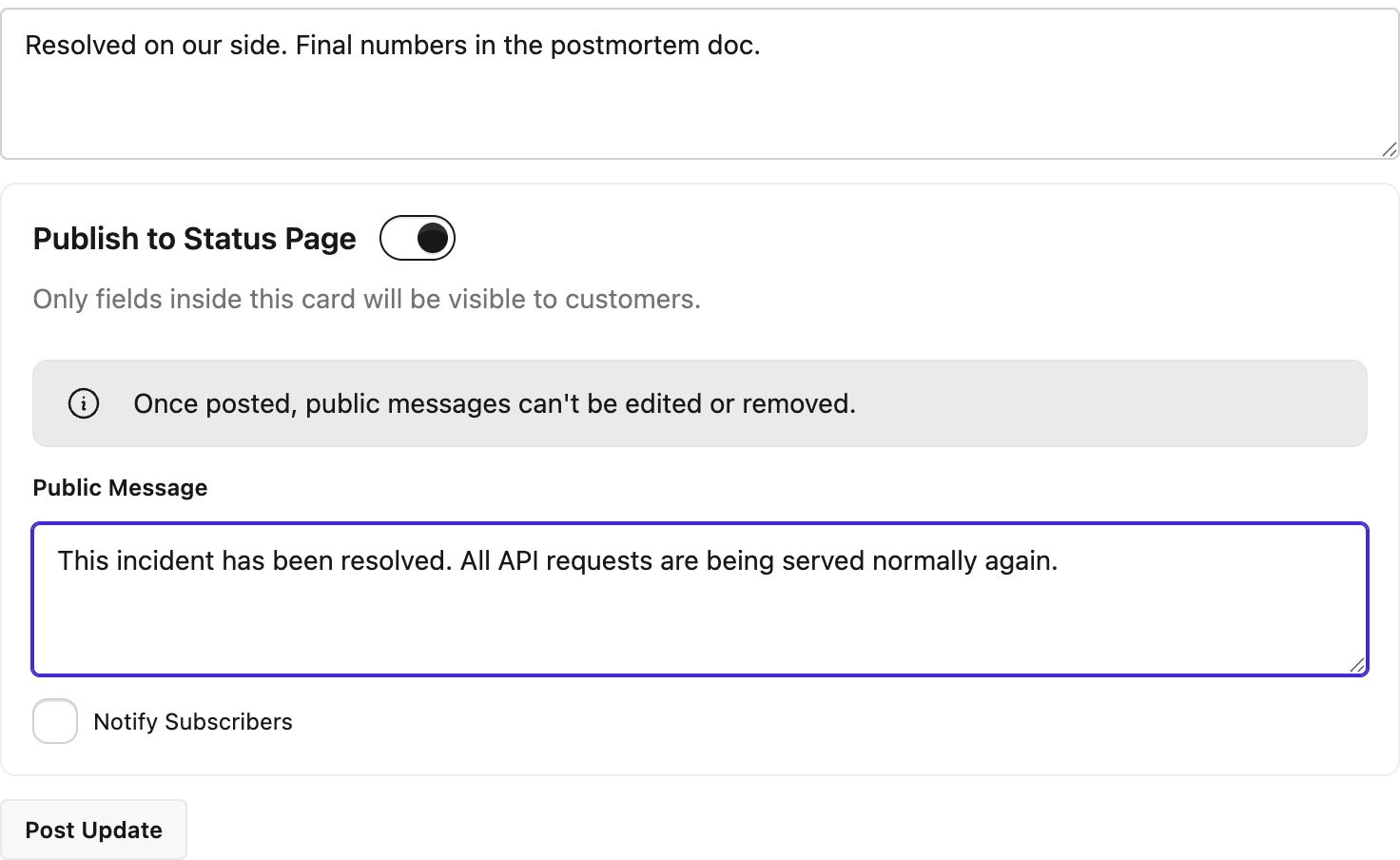
If the service is mapped to a status page, a **Publish to Status Page** card appears at the bottom. Switch it on to publish an incident notice at the same time as you declare. The card previews exactly what will happen, for example "2 public services on Acme will be updated to Partial outage", and asks for a **Public Title** (pre-filled from your title), a **Public Message**, and whether to **Notify Subscribers**. Only what is inside that card reaches the status page. The card is hidden for services with no mapping.
Click **Declare Incident**. Any runbook whose rules match the service and severity fires straight away, which is how a Slack channel gets created and how manual steps land on the incident page. You are returned to the incidents list, where the **Ongoing** and **All** tabs show each incident with its severity, status, and the affected service's current state.
## The incident page
Click an incident in the list to open it. Everything about the response lives here.
* **Title and Summary**: click either one to edit it in place. Changes save when you click away.
* **Manual runbook steps**: if a matching runbook has script steps, each one appears as a card with the script to run. Click the check mark when it is done and the step is recorded in the timeline.
* **Post update form**: type an internal update and click **Post Update**. Turn on **Publish to Status Page** to also post it to the status page, covered in the next section.
* **Timeline**: newest first. Internal updates carry an **Internal** badge. Published updates carry a **Status Page** badge and expand to show the public title, the public message, the page it went to, and the impact set on each component. Between them, single-line entries record who declared the incident, status and severity changes, service status changes, Slack channels created, and runbook steps completed. The menu on an update lets you edit its internal text or delete it. Public text cannot be edited, and deleting an update that was published also removes its public counterpart from the status page.
* **Properties**, in the right sidebar: the incident status and severity. Change either and click **Save changes**.
* **Affected Service**: the service and its current status. Moving the status here updates the service's live status and logs the change in the timeline.
* **Commander** and **Responders**: reassign the lead, or use the menu next to Responders to search for and add or remove people.
* **Menu** in the top right: **Resolve** and, for admins, **Delete**.
## Publish updates to status pages
Publishing is available whenever the affected service is [mapped to status page components](/next/incident-management/configure-incident-management-services.md#status-page-mapping), or the incident already has a notice. Write your internal update, switch on **Publish to Status Page**, and fill in the public part:
* **Public Title** appears only the first time you publish, because it names the notice. Later updates are appended to that notice.
* **Public Message** is what subscribers and visitors read. Keep it separate from the internal text, which stays private.
* **Notify Subscribers** sends the update through the page's notification channels. Leave it off for minor updates you want visible but not pushed.
Click **Post Update**. On every status page the service is mapped to, StatusPal Next posts the message as a notice update with the incident's current status, and sets the mapped components' impact to match the incident's severity: Minor shows as Degraded, Major as Partial outage, Critical as Unavailable. Without a severity, the service status is used instead. The timeline card records exactly what went out and where.
{% hint style="warning" %}
**Public messages are final.** Once posted they cannot be edited from the incident. Read the public message twice before you post, and remember that only the fields inside the Publish card reach the status page.
{% endhint %}
## Resolve and delete incidents
To resolve, open the menu in the top right and choose **Resolve**, or set the incident status to **Resolved** in the sidebar. Resolving sets the affected service back to Operational and, if the incident was published, posts a **Resolved** update on every linked notice and returns the mapped components to Operational. The resolution text comes from your resolution notice template if you have one, otherwise it reads "This incident has been resolved."
{% hint style="info" %}
**Resolution updates do not notify subscribers.** They appear on the status page but no email or Slack message goes out. If subscribers should hear that the incident is over, publish a final update with **Notify Subscribers** checked before you resolve.
{% endhint %}
Resolved incidents stay in the **All** tab with their full timeline. Reopen one by changing its status back in the sidebar.
Only admins can delete an incident, from the same menu. Deletion is permanent and removes every internal update. Notices already published to your status pages are kept, so the history on those pages stays intact.