> For the complete documentation index, see [llms.txt](https://docs.statuspal.io/llms.txt). Markdown versions of documentation pages are available by appending `.md` to page URLs; this page is available as [Markdown](https://docs.statuspal.io/next/developers/api-keys.md).
# API keys
Create and manage API keys to authenticate requests to the StatusPal Next REST API.
An API key lets your scripts and integrations authenticate requests to the StatusPal Next REST API on behalf of your workspace.
## What an API key is for
API keys authenticate requests to the REST API for your organization. Any request that creates or updates status pages, services, notices, and other resources through the API must include a valid key.
For the full list of endpoints and request formats, see the [API reference](/next/developers/api-reference.md).
## Create a key
To create a key, go to **Settings** > **API Keys** and click **New API Key**.
Give the key a descriptive **Name** (for example "Production webhook") so you can identify what it is used for later, then click **Create API Key**.
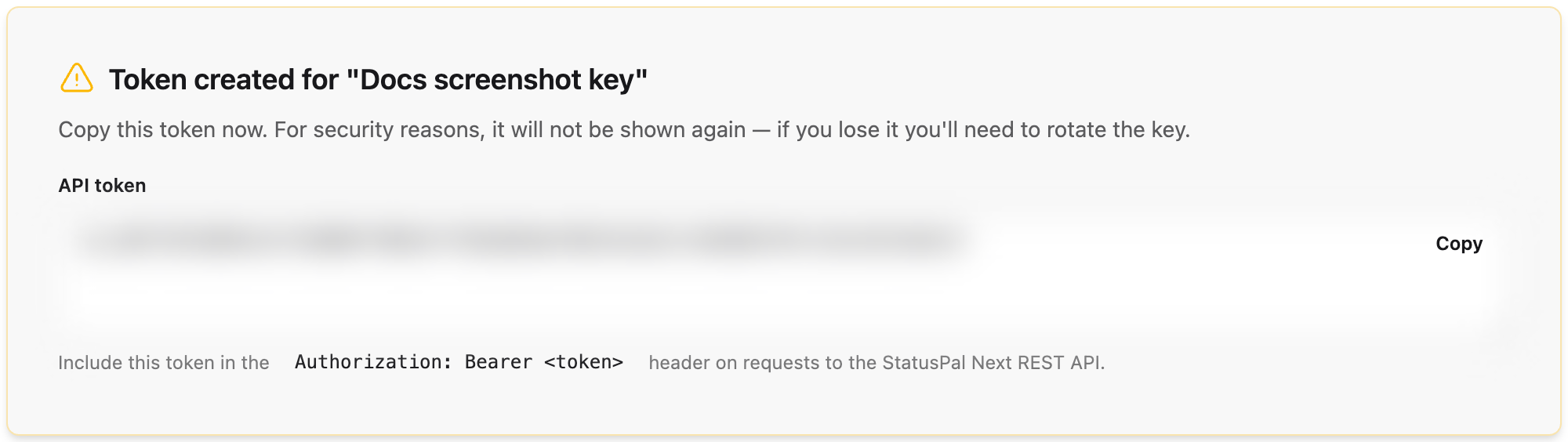
The token is shown once, right after creation. Copy it immediately and store it somewhere safe, such as a password manager or your secrets store: StatusPal Next does not keep the raw token, so it cannot be shown again. If you lose it, rotate the key to get a new one.
## Use a key
To authenticate a request, send the token in an `Authorization: Bearer ` header. A request with a missing or invalid token is rejected.
A key grants access to every REST API resource for the organization it belongs to, such as status pages, services, containers, notices and updates, automations, outgoing webhooks, and monitoring checks. It is not tied to a specific team member or role.
Each key's row in **Settings** > **API Keys** shows a **Last used** indicator, updated every time the key authenticates a request, so you can tell whether a key is still in use before deleting it.
## Rotate or delete a key
Both **Rotate** and **Delete** take effect immediately: any client still using the old token stops working right away, with no grace period.
* **Rotate** generates a new token for the same key, keeping its name, while invalidating the old token.
* **Delete** removes the key entirely.
Because both actions cut clients off immediately, the safer way to change credentials without an interruption is to create a new key first, update your integration to use the new token, confirm it works, and only then delete the old key.